Stores
Each project has its own site store; add central stores and yards that serve several projects.
On this page
A store is any place where material is kept and counted. Konkat makes a site store for every project automatically. You can add central stores / yards — a godown or yard that supplies several sites — and extra stores that belong to one project.
Kinds of store#
| Kind | Shown as | Who sees it | Who can add or edit it |
|---|---|---|---|
| Site store | Site store of project | People on that project with See stock | Made automatically; edit needs Manage the project |
| Project store | Store of project | People on that project with See stock | Manage the project (Owner, Admin) |
| Central store | Central store — all projects | Anyone who can see stock on any project | Only an Owner or Admin account type |
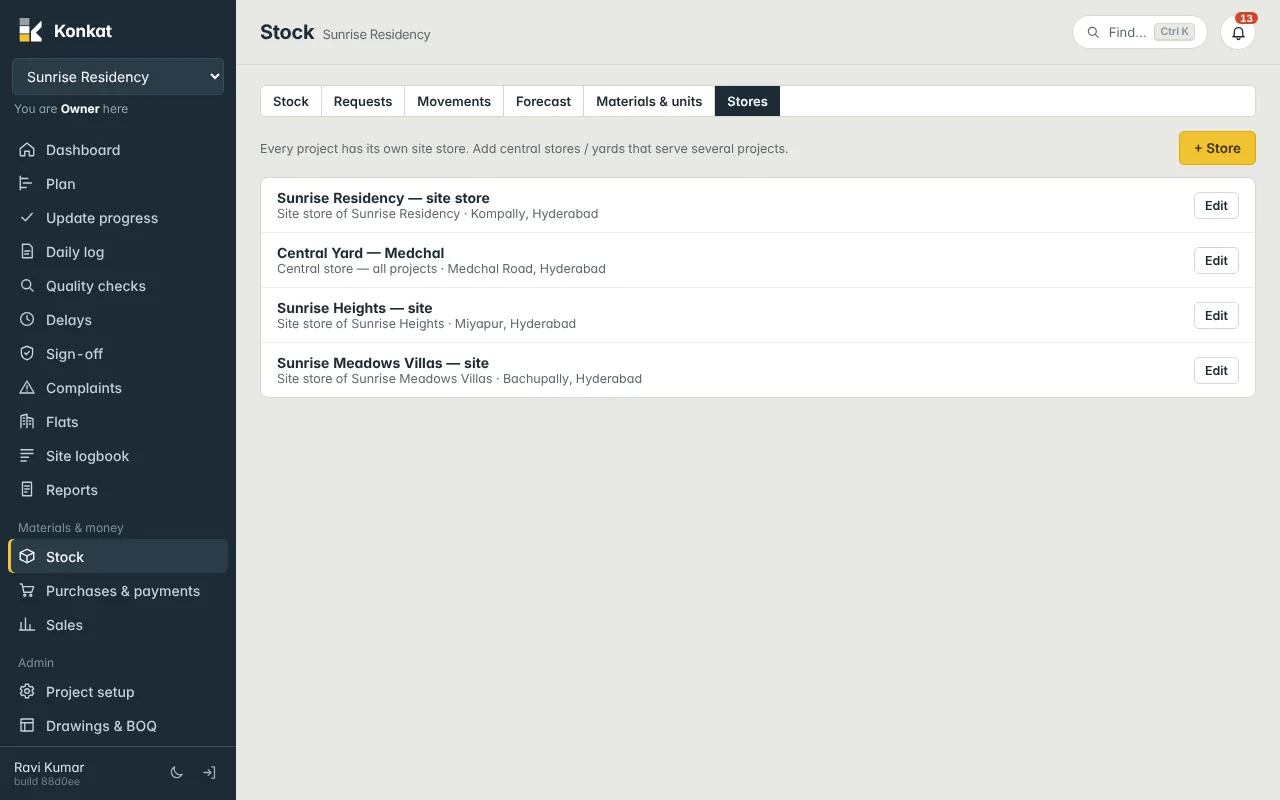
The site store is first named after the project (“Sunrise Residency — site”); you can rename it, e.g. “Sunrise Residency — site store”.
Add a store#
- Open Stores — Stock → Stores → + Store.
- Name it — Store name, e.g. “Central Yard — Medchal”.
- Belongs to — Central — every project (Owner/Admin accounts only) or this project only.
- Location and keeper — Location (e.g. Medchal Road, Hyderabad) and the Store keeper from the project team.
- Save.
A store can’t be moved to another project later. To stop using a store, edit it and tick Closed (hidden). The site store can’t be closed.
Where stores are used#
- Stock tab — the box at the top shows This project’s stores, Every store I can see, or one store.
- Daily log — material used in an end-of-day log is always taken from the project’s site store. See Daily log.
- Material requests — the requested material is sent into the site store, from a central store or another store. See Material requests.
- Purchase orders — Deliver to the site store (the default) or a central store. Deliveries are received into that store. See Receiving deliveries.
- Transfers — move material between any two stores you handle. See Stock and movements.
- Forecast — looks at the stores that belong to the project (not central yards). See Stock forecast.
Rights on a central store#
Moving stock in or out of a central store needs Stock in / out on at least one of your projects. Moving stock into a project needs it on that project.
Example#
Sunrise Builders buy AAC blocks by the truckload into Central Yard — Medchal. When the 2nd floor blockwork starts at Kompally, Anil (Storekeeper) transfers 2,000 Nos to Sunrise Residency — site store. The yard’s stock drops, the site’s rises, and the value moves at the yard’s average rate.
Common questions#
Can I have two stores on one site?#
Yes — add a store that belongs to this project, e.g. “Sunrise Residency — tower B store”. The daily log still deducts from the site store, so transfer to it first.
Why can’t I see another project’s store?#
You see only central stores and the stores of projects where you are on the team with See stock.