Templates
Reusable sequences of steps — like a column casting or slab cycle — that you add to a plan in one go, already grouped, linked and with materials and rooms filled in.
On this page
Most building work repeats: the same slab cycle on every floor, the same finishing sequence in every flat. A template is a saved list of those steps. Using it adds all the steps to the plan as tasks, already grouped and linked, so a ten-floor slab plan takes minutes.
How templates work#
- Make or pick a template — e.g. Column casting: steel tying → shuttering setup → concrete pouring → curing → de-shuttering → debris clearing. Each step has a normal duration, and whether it follows the step before it.
- Group the steps — in the editor, › puts a step inside the one above it (a group) and ‹ takes it out. Groups become parent tasks on the plan.
- Use it on a project — choose the start date and the floors. All steps are added as tasks, linked one after another.
- Adjust on the plan — the added tasks are normal tasks. Changing the template later does not change tasks already added; it only affects the next time you use it.
The Templates screen#
Open Templates (Admin group). The list shows every template with its description; ready-made ones are tagged Built-in. Each has Edit steps (or View) and Use on the plan. Templates are shared by all projects.
Edit a template#
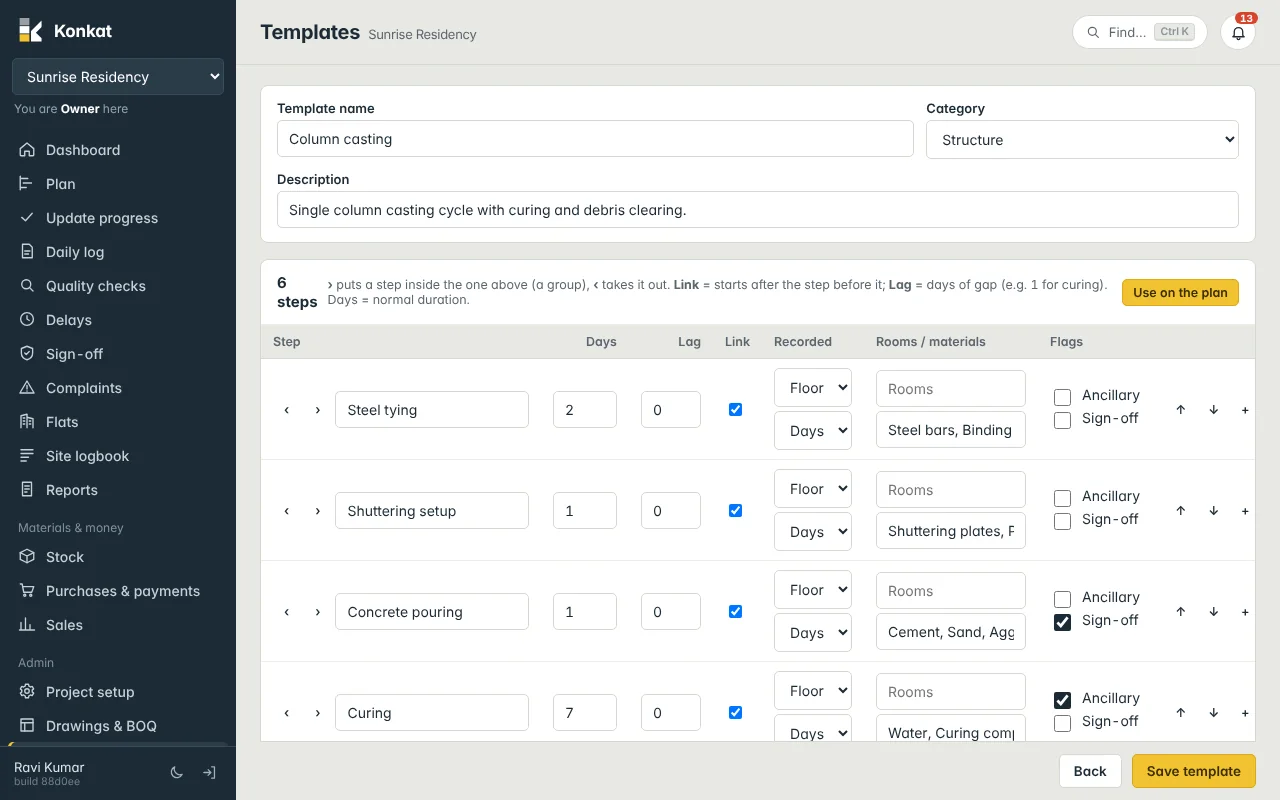
At the top: Template name, Category and Description. Below, one row per step:
| Column | What to enter |
|---|---|
| Step | The step name, with ‹ / › to group. A step with steps indented under it shows in bold. |
| Days | Normal duration, e.g. 2 for steel tying, 7 for curing. |
| Lag | Days of gap after the step before, e.g. 1. |
| Link | Ticked = starts after the step before it. |
| Recorded | Floor or Flat, and tracking Days, Units or Qty. |
| Rooms / materials | Rooms for flat steps (e.g. Bathroom, Kitchen) and a comma-separated materials checklist (e.g. Steel bars, Binding wire). |
| Flags | Ancillary (curing, cleaning) and Sign-off (needs sign-off when done). |
Use ↑ / ↓ to move a step, + to add a step below, and × to delete one. Tap Save template, or Back to leave without saving.
Make a new template#
Tap New template, give it a name and category, and add steps. A good way to start is to write the steps exactly as your site does them, with your usual durations.
Delete a template#
Delete appears for templates you made (not built-in ones). A template that has been used on a plan can’t be deleted — rename it instead.
Use a template on the plan#
- Start — tap Use on the plan on the Templates screen, or From template on the Plan.
- Template — pick it from the list (shown with its category).
- Start date — the first step starts here; the rest follow in order. It starts as today once the project has started, otherwise the project start date.
- Floors — which floors these tasks are for:
3for the 3rd floor,0for the stilt floor,1-4for several. Blank means the whole building. - Name on the board — optional, e.g. 3rd floor columns. Otherwise the group is named after the template.
- Tap Add to plan.
Konkat adds one parent task with every step under it — grouped as in the template, linked one after another with the lags, and with durations, materials and rooms filled in. Steps marked Sign-off need sign-off when done.
For a ten-floor building, add the template once for the 1st floor, check it, then use Duplicate group or Copy and Paste: Konkat suggests the next floor’s name and floor number each time. See The Gantt chart.
Who can do what#
- Use on the plan needs Edit the plan on the project.
- Saving a template needs an account type of Owner, Admin or Engineer (People screen).
- Deleting a template needs an account type of Owner or Admin.
Common questions#
I edited the template. Why didn’t the plan change?#
By design. Tasks on the plan are a copy. Edit them on the plan, or delete and re-add them from the template if nothing is recorded on them yet.
The steps came in with “Ground” in their names.#
Use Project setup → Units → Rename existing names… and tick Also rename steps in the template library. See Floors and units.