Roles and permissions
What each built-in role (Owner, Admin, Engineer, QC, Supervisor) can do, what every tick in a custom role means, and how project visibility works.
On this page
In Konkat, what a person can do depends on their role on each project. There are five built-in roles, and you can make as many custom roles as you need — a Storekeeper, a Site accountant, a Sales executive. This article explains both, and the rules about who can see a project at all.
Who can see a project#
A project is visible only to the people on its Team (Project setup → Team). There is no “see all projects” right: even an Owner or Admin by account type sees only projects whose Team they are on. Adding someone to the Team shows them the project; removing them hides it at once.
The only exception is the technical Administrator account used to install Konkat, which sees every project.
Account type vs project role#
- Account type (on the People screen) — optional. Owner or Admin lets someone create projects, logins and custom roles. Most people have None.
- Role on the project (on the Team) — decides what they can do on that project. Suresh can be Engineer on Sunrise Residency and Admin on another project.
Built-in roles#
The built-in roles are fixed. A ✓ means the role allows that action on projects where the person has that role.
| Allows | Owner | Admin | Engineer | QC | Supervisor |
|---|---|---|---|---|---|
| See the project | ✓ | ✓ | ✓ | ✓ | ✓ |
| Update progress | ✓ | ✓ | ✓ | ✓ | ✓ |
| Daily logs & workers | ✓ | ✓ | ✓ | ✓ | ✓ |
| Log delays | ✓ | ✓ | ✓ | ✓ | ✓ |
| Quality checks | ✓ | ✓ | ✓ | ✓ | |
| Sign off work | ✓ | ✓ | ✓ | ✓ | |
| Edit the plan | ✓ | ✓ | ✓ | ||
| Reports | ✓ | ✓ | ✓ | ✓ | ✓ |
| Drawings, BOQ & estimates | ✓ | ✓ | ✓ | ||
| See stock | ✓ | ✓ | ✓ | ✓ | ✓ |
| Stock in / out | ✓ | ✓ | ✓ | ✓ | |
| Request material | ✓ | ✓ | ✓ | ✓ | ✓ |
| Approve material requests | ✓ | ✓ | |||
| Purchase orders | ✓ | ✓ | |||
| Payments & money | ✓ | ✓ | |||
| Sales (CRM) | ✓ | ✓ | |||
| Log complaints | ✓ | ✓ | ✓ | ✓ | ✓ |
| Handle complaints | ✓ | ✓ | ✓ | ✓ | |
| Manage the project | ✓ | ✓ |
The same table is shown in Konkat under People → Roles → Built-in roles.
What only an Owner can do#
Owner and Admin have the same ticks, but some things are kept for the project Owner: making someone an Owner or changing or removing an owner, giving Can correct logs to others, and correcting or deleting other people’s or earlier days’ logs and workers sheets.
What each tick means#
| Tick | In plain words |
|---|---|
| See the project | Open the project: dashboard, plan, flats, logbook. Every role has this; it can’t be unticked. |
| Update progress | Mark work started / done from site, per floor, flat or room. |
| Daily logs & workers | Fill daily logs (snapshots, end-of-day) and the workers sheet; assign workers on a task. |
| Log delays | Record delays and their causes, and add the lost days to a task. |
| Quality checks | Record QC checks and raise concerns. |
| Sign off work | Approve or reject finished work. Shows the Sign-off screen in the menu. |
| Edit the plan | Add and change tasks on the Gantt: dates, links, sub tasks, adding from templates. |
| Reports | See and print reports. |
| Drawings, BOQ & estimates | Upload drawings, BOQ and material estimates; add, rename, move and delete drawings. (Everyone on the project can open drawings.) |
| See stock | See stores and stock levels. |
| Stock in / out | Receive, issue and transfer material; count corrections. |
| Request material | Ask for material from a store. |
| Approve material requests | Approve or reject material requests; the approver can change quantities and pick the store to send from. |
| Purchase orders | Create purchase orders and receive deliveries; manage suppliers. |
| Payments & money | Record payments and see amounts paid and due. |
| Sales (CRM) | Leads, follow-ups, bookings and customers. |
| Log complaints | Report a complaint on a building, floor or unit. |
| Handle complaints | Assign, resolve and close complaints. |
| Manage the project | Units, team, worker types and project settings (Project setup). |
Make a custom role#
Owners and Admins (by account type) can make custom roles. They can be used on every project’s Team.
- Open People → Roles.
- Start the role — tap + New role, or Copy under a built-in role to start from its ticks (the copy is named e.g. “Supervisor (custom)”).
- Name it — Role name, e.g. Storekeeper, and an optional Description. You can’t reuse a built-in role’s name.
- Tick what it can do under What this role can do.
- Tap Save role. It now appears in the role list on every Team.
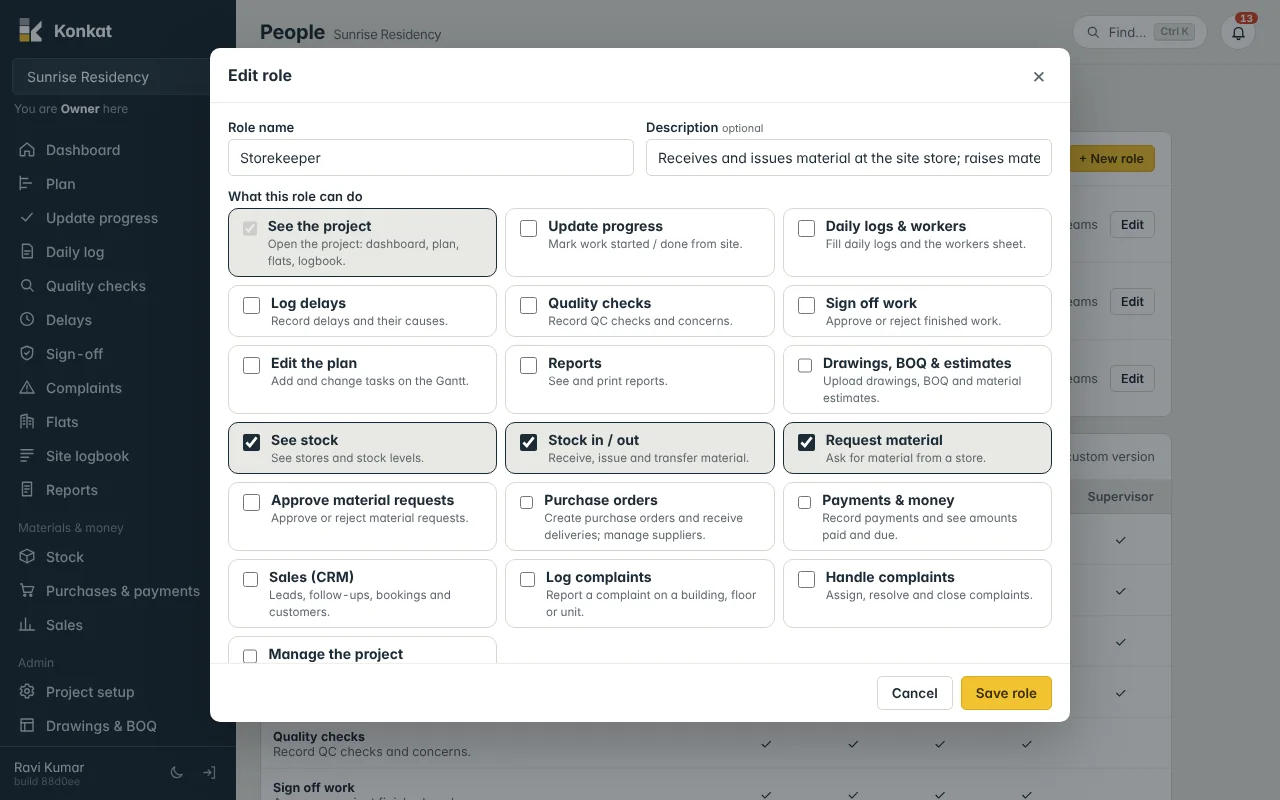
Changing a role’s ticks changes them for everyone who has that role, on every project. To stop a role without reassigning people, open it and tick Switch this role off — people who have it lose these rights until given another role. A role can be deleted only when nobody has it on any Team.
Extra rights per person#
Three ticks on the Team are set per person, on top of the role: Confirms materials, Can sign off and Can correct logs. See Team and people.
Being allowed to sign off a particular piece of work depends on the Can sign off tick (or being picked as a signer on the task); Owners and Admins can always sign off. The Sign off work tick in a role mainly puts Sign-off in the menu and pre-ticks Can sign off when you add someone.
Common questions#
Our engineer should not see money.#
The built-in Engineer role already cannot see purchase orders, payments or sales. It can see stock.
I want a site engineer who can also approve material requests.#
Copy the Engineer role, tick Approve material requests, name it (e.g. Senior engineer) and give it to that person on the Team.