Bookings
Book a unit for a customer with the agreement value and a payment schedule linked to dates or plan tasks; track it to registration and handover.
On this page
A booking ties a unit to a customer: the agreement value, the payment schedule, and the booking’s progress from booked to handed over. Booking a unit marks it Booked in the units table so nobody else sells it.
Who can do what#
- Book, edit, change status, cancel — Sales (CRM) on the project.
- Record money received — Payments & money. See Customer payments.
Book a unit#
- Start — press Book a unit on a lead, or Bookings → + Book a unit.
- Unit and date — choose the Unit; only units that are not Booked, Sold or Not for sale are listed. The unit’s area and base price are brought in. Set the Booking date.
- Customer — New (name, phone, PAN) or Existing (pick from customers).
- Price — Area (with its unit, e.g. sq ft), Rate ₹ per that unit and Other charges ₹ (parking, club, corpus…). The Agreement value ₹ shows “area × rate + charges”; type a different value if you agreed a round figure.
- Payment schedule — adjust the lines (see below). The label shows the total %; it must come to 100%.
- Notes — anything agreed, e.g. “Car parking slot P-14”.
- Book unit.
The payment schedule#
A new booking starts with a typical construction-linked plan:
| Milestone | % |
|---|---|
| Booking amount | 10 |
| On agreement | 10 |
| On foundation / plinth | 15 |
| On slabs (spread over floors) | 35 |
| On brickwork & plastering | 10 |
| On flooring & finishing | 10 |
| On handover | 10 |
For each line you set the name, the %, and when it is due: a date, or or when task is done… — a task from the plan. Add lines with + Milestone (for example split the 35% slab stage into one line per slab), remove them with ×.
Link slab instalments to the slab tasks on the plan. When the site marks “2nd floor slab” done, that instalment shows Due now automatically — no one has to remember to raise the demand. A task waiting for sign-off already counts as done here.
Worked example — flat 101#
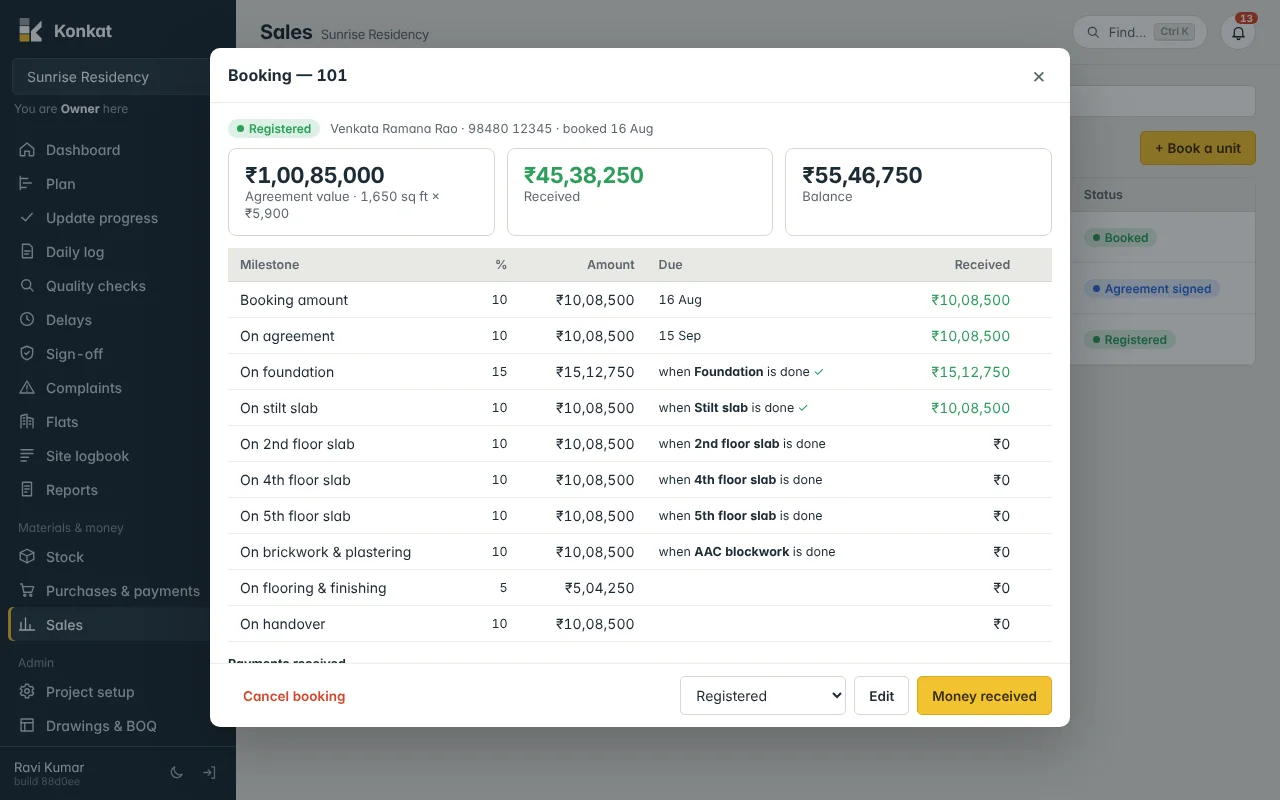
Venkata Ramana Rao books 101 (3 BHK, east) on 16 Aug: 1,650 sq ft × ₹5,900 = ₹97,35,000 + ₹3,50,000 other charges = ₹1,00,85,000. The schedule: Booking amount 10% (₹10,08,500, due 16 Aug), On agreement 10% (due 15 Sep), On foundation 15% (₹15,12,750, when Foundation is done), On stilt slab 10%, one 10% line per later slab, On brickwork & plastering 10% (when AAC blockwork is done), On flooring & finishing 5%, On handover 10%.
Booking statuses#
| Booking status | Unit’s sale status |
|---|---|
| Booked | Booked |
| Agreement signed | Booked |
| Registered | Sold |
| Handed over | Sold |
| Cancelled | Available again |
Change the status with the box at the bottom of the booking. Cancel booking asks why; the unit becomes available and the payments stay on record. A unit can have only one live booking (“101 is already booked”).
The Bookings list#
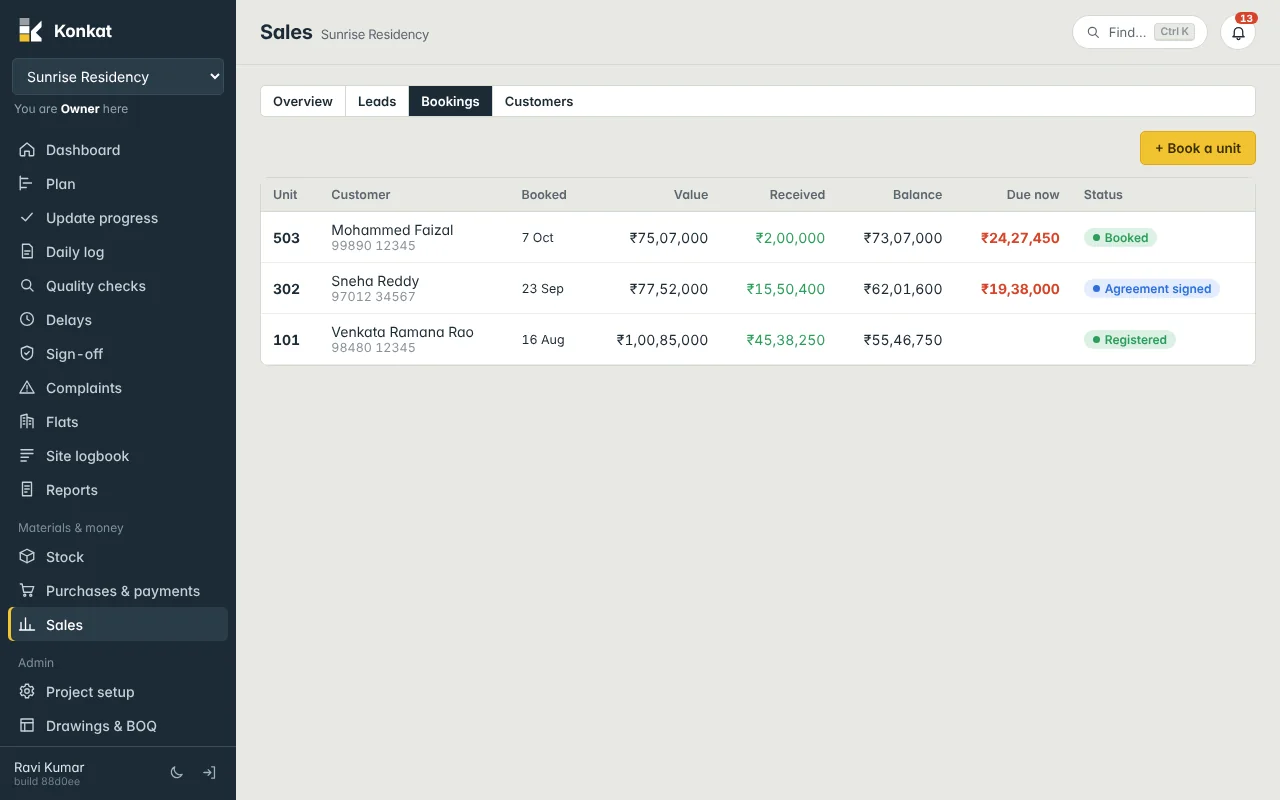
Each row shows the unit, customer and phone, booking date, Value, Received, Balance, Due now (in red) and status. Cancelled bookings are faded. Tap a row to open it; Edit changes the price, customer or schedule.
Customers#
Booking creates the customer, who then appears in the Customers tab with Call and WhatsApp buttons, and in Complaints for their unit.
Common questions#
Can I change the schedule after booking?#
Yes, with Edit. Money already received is spread over the new lines again, oldest first. If you change the agreement value, check the line amounts too.
Where do I record the token cheque?#
Open the booking and press Money received. See Customer payments.