Plan changes after the start
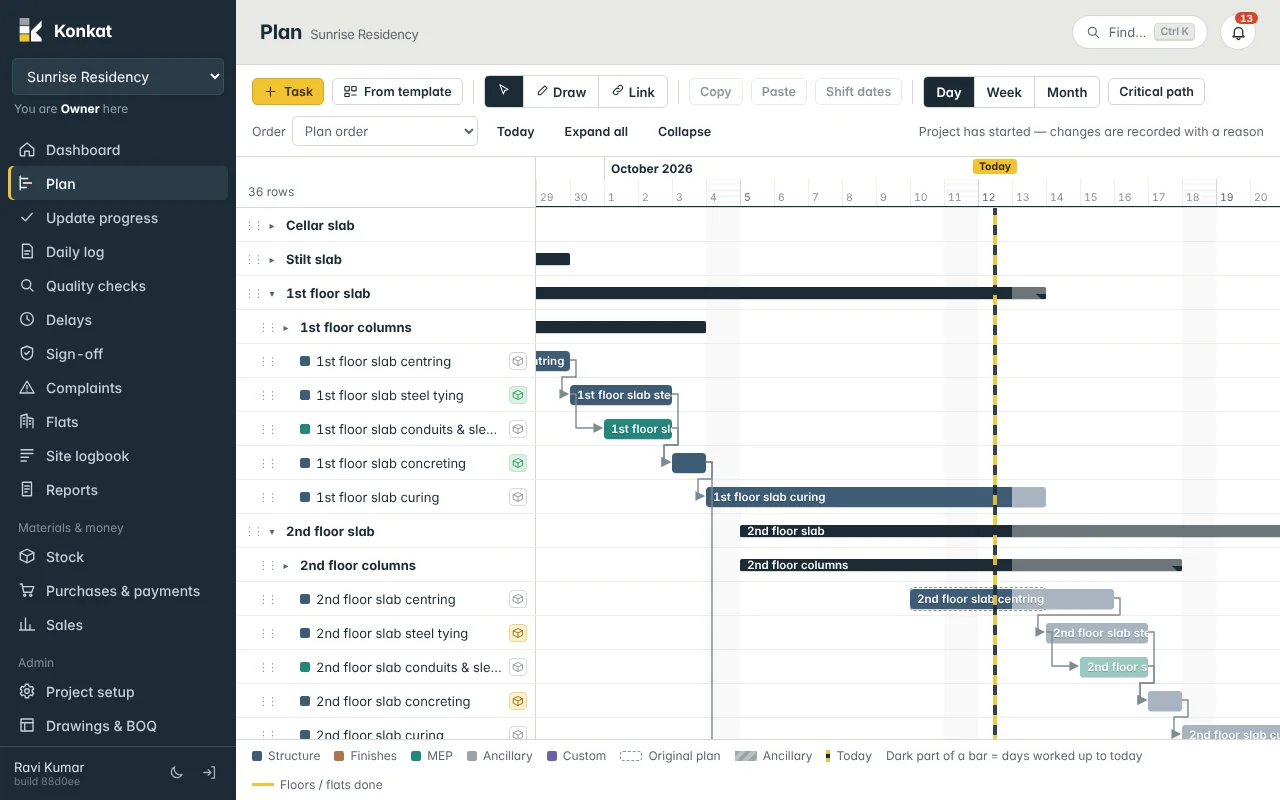
Once a project has started, Konkat keeps the original plan, records every date change as a revision with a reason, and shows the original as a dashed bar.
On this page
Before work starts, the plan is a draft — move things around as much as you like. Once the project has started, Konkat keeps the original plan frozen and records every date change as a revision. This gives you an honest record of what was planned, what changed and why.
When does a project count as started?#
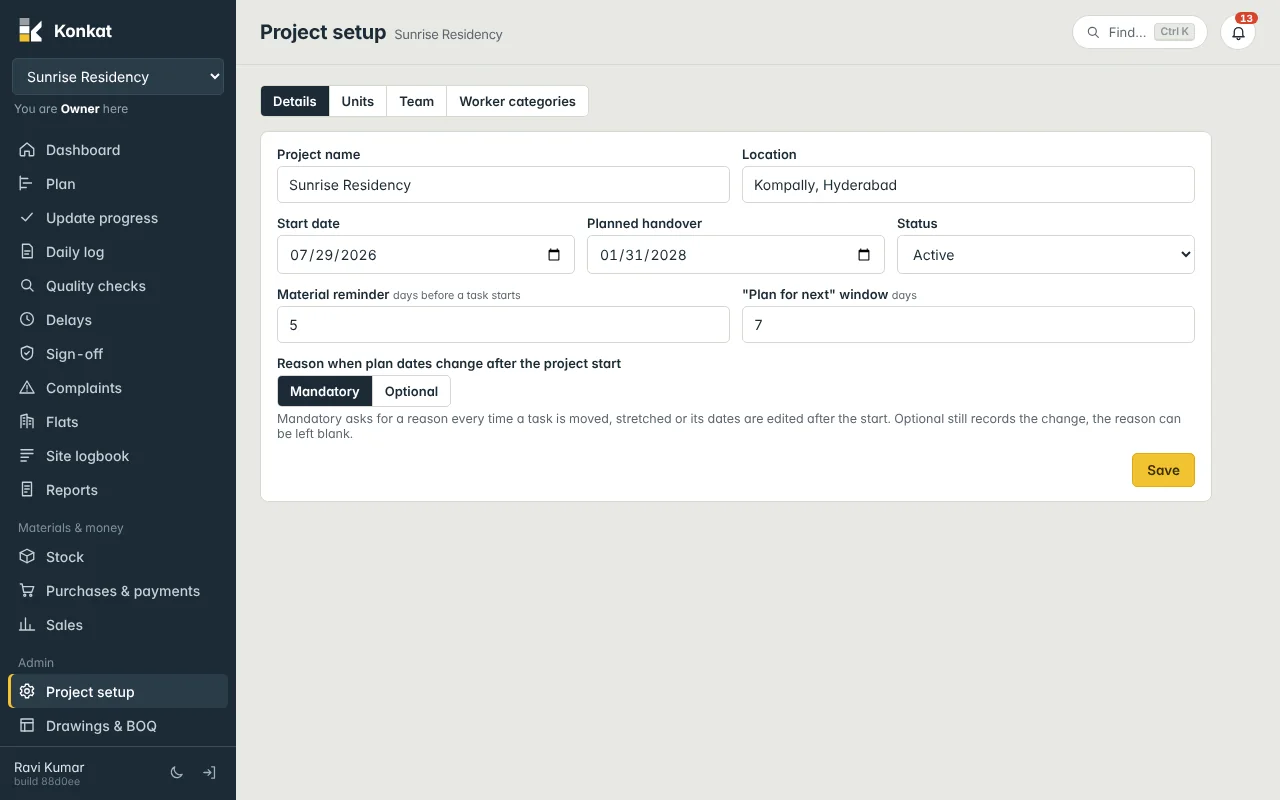
From its Start date (Project setup → Details). On and after that date the Plan shows the hint Project has started — changes are recorded with a reason.
What counts as a plan change#
- Dragging a bar to a new date.
- Dragging a bar’s right edge to change its duration.
- Shift dates on selected tasks.
- Changing Start or Duration (days) in the task form.
- Shifting linked tasks with Change and shift.
Moving a group counts as a change to each task inside it.
Not plan changes: renaming, re-ordering rows, editing floors, people or materials, and logging a delay with Add these days to the task’s plan (that adds extra days to the task, recorded on the delay itself — see Delays).
Giving a reason#
When you make a change after the start, Konkat asks Why is the plan changing? (on the Plan) or Why are the dates changing? (in the task form). Write it the way you would explain it to the owner: Rain delayed slab pour, Shuttering material late from Mahesh Shuttering Works, Client changed the lift well size.
Whether the reason is required depends on the project setting Reason when plan dates change after the project start:
- Mandatory — Konkat won’t save the change without a reason: The project has started — add a reason for the change.
- Optional — the change is recorded either way; the reason can be blank.
See Project settings.
What Konkat keeps#
For each change Konkat stores: when, who, old start → new start, old duration → new duration, and the reason. The task’s original duration is never overwritten after the start; a changed duration is kept as the revised duration.
You see this in several places:
- The dashed bar on the Plan — the Original plan, drawn under the current bar when a task has been revised or has had extra days added.
- rev 2 next to the task name — how many times it was revised.
- Plan revisions in the task details panel (double-click a task) — each change with date, person, old and new dates and durations, and the reason.
- The task details line — Start … · original 4 d · revised 6 d · used 2 d.
- Planned vs actual (days) on the Dashboard — Original, Revised (+ extra days) and Used for each active task.
How days are counted#
| Term | Means |
|---|---|
| Original (planned) | The duration when the project started. |
| Revised | The new duration after a change with a reason. |
| Extra days added | Days added by logging delays with Add these days to the task’s plan. |
| Used | Working days with a daily log on the task. |
The days a task is allowed = revised (or original) + extra days. When Used goes past that, the task shows as Overrun.
Good practice#
- Change the plan when the real plan changes — not to hide a delay. If work is simply late, log a delay with its cause; the cause analysis is far more useful later.
- Move a whole chain at once with Change and shift, so you give one reason for all of it.
- Keep reasons specific. “Delay” tells nobody anything; “Steel delivery from Deccan Steels late by 3 days” does.
Common questions#
Can I reset the original plan?#
No. After the start the original stays as the baseline. If the plan was badly wrong from day one, explain it in the reasons; the revisions history shows the full story.
We set the start date too early by mistake.#
Correct the Start date in Project setup → Details. Until the new date, changes are treated as draft changes again.