Site logbook
Everything that happened on the project, newest first, with photos — progress taps, daily logs, workers sheets, QC, delays, sign-offs and corrections.
On this page
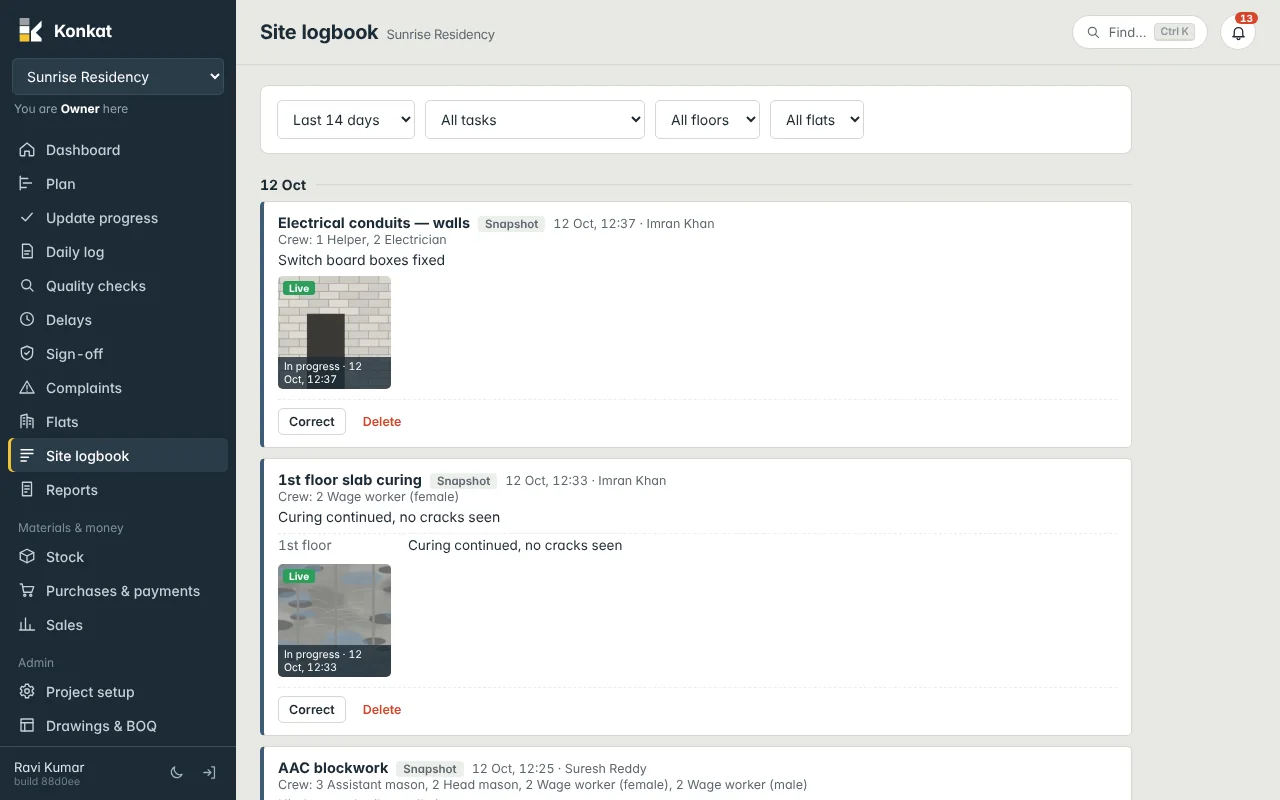
The Site logbook is the project’s diary. Every update made on site appears here, newest first and grouped by day, with photos. Use it to see what happened yesterday, check what a supervisor recorded, or look back at a flat or floor.
Opening the logbook#
Click Site logbook in the left menu, or tap More → Site logbook on a phone. Everyone on the project’s Team can read it.
What you see in it#
Entries are grouped under a date heading. Each kind of entry looks a little different:
| Entry | What it shows |
|---|---|
| Progress update | A status (In progress, Done…) and what changed, e.g. “1st floor → Done”, with the note and photos taken with it. |
| Daily log | The task, tagged Snapshot or End of day, the crew, the progress note, where work was done (floor, flat, room) with quantities, Material used, remarks and photos. |
| Workers sheet | “Workers on site · N people” with each crew row and the tasks they were on, or “Not booked to a task”. |
| QC | The check, any concern raised (in red) or “Checked — no issues found”, and a link Open full QC trail. |
| Delay | The cause, detail and days lost, and the flat if one was given. |
| Sign-off | Signed off or Sent back, with the note and photos. |
| Material on site | When someone confirmed a task’s material was available. |
| Correction | Corrected or Deleted: which daily log or workers sheet, the date of the entry, who did it and the reason. |
Photos carry a Live stamp when taken with the in-app camera, or Uploaded when picked from the gallery. Tap a photo to open the viewer; swipe or use the arrows for the next one.
Filtering#
Use the boxes at the top to narrow the list:
- Date range — Today, Last 14 days (the default), This week, Last week, This month, Last month, Full project, or Custom range with from and to dates.
- All tasks — pick one task. Choosing a group task includes all its sub tasks.
- All floors and All flats — show only what happened on one floor or one flat.
When you filter by floor or flat, workers sheets, material confirmations and corrections are hidden, because they belong to the whole site rather than one floor. The logbook shows up to 400 entries; choose a shorter range if you are looking for something older.
Correcting entries from the logbook#
Under daily log and workers sheet entries you may see buttons:
- Edit — on your own daily log, on the same day you made it.
- Correct and Delete — for the project owner and people the owner allowed (Can correct logs). A reason is required and a copy of the old entry is kept.
- Open sheet — opens that day’s Workers sheet.
See Corrections for the full rules.
Logbook or report?#
The logbook is the live, scrollable view on screen. When you need something to print, send to a client or keep on file, use Reports — the Daily site report is built from the same entries.
Common questions#
Why don’t I see yesterday’s entries?#
Check the date range — Today shows only today. Also check that no task, floor or flat filter is set.
A supervisor logged against the wrong task. Can I move it?#
The owner (or someone allowed) can correct or delete the entry with a reason, and the supervisor can log it again against the right task.
Does it work with weak signal?#
If you opened the logbook before, the last loaded copy still shows with a “No signal” bar. See Weak signal and offline.