Your first project
Set up a new project in Konkat from start to first site update: create it, add units and the team, build the plan and start recording work.
On this page
This article walks you through setting up a project from nothing to the first update from site. It takes about an hour for a typical apartment block. You need an Owner or Admin account type to create projects.
Before you start#
Keep these ready:
- The project name, location, start date and planned handover date.
- The floor list — cellars, stilt, typical floors — and how many units each floor has.
- The names, emails and phone numbers of the people who will use Konkat, and what each one does.
- Unit details if you have them: configuration (2 BHK, 3 BHK), facing, saleable area, carpet area, base price.
In the examples we set up Sunrise Residency, Kompally: a cellar (B1), a stilt floor (0) for parking, and flats 101 to 804 — four per floor.
Step by step#
- Create the project — open Projects in the left menu and tap New project. Fill the name, location, start date and floors. Konkat makes the flats for you. See Create a project.
- Fix the floors and units — open Project setup → Units. Add or replace units floor by floor (for example
1-8with 4 units per floor), and add single units such as a clubhouse or game room. See Floors and units. - Fill unit details — in the units table below, tick a series (every flat 01) or a floor and use Edit selected to set configuration, facing, area and price for many units at once. See The units table.
- Add the team — open Project setup → Team. Search each person, choose their role and tap Add to project. Use + New person for someone who has no login yet. Only people on the Team can see the project. See Team and people.
- Check the settings — open Project setup → Details and decide whether a reason is Mandatory or Optional when plan dates change after the start. See Project settings.
- Build the plan — open Plan. Use From template to add a slab cycle for each floor, and + Task for one-off work like the compound wall. Link tasks so that delays push the work after them. See The Gantt chart and Templates.
- Start recording on site — the supervisor opens Update progress to mark floors or flats started and done, sends Daily log entries, and fills the Workers sheet each day. See Update progress.
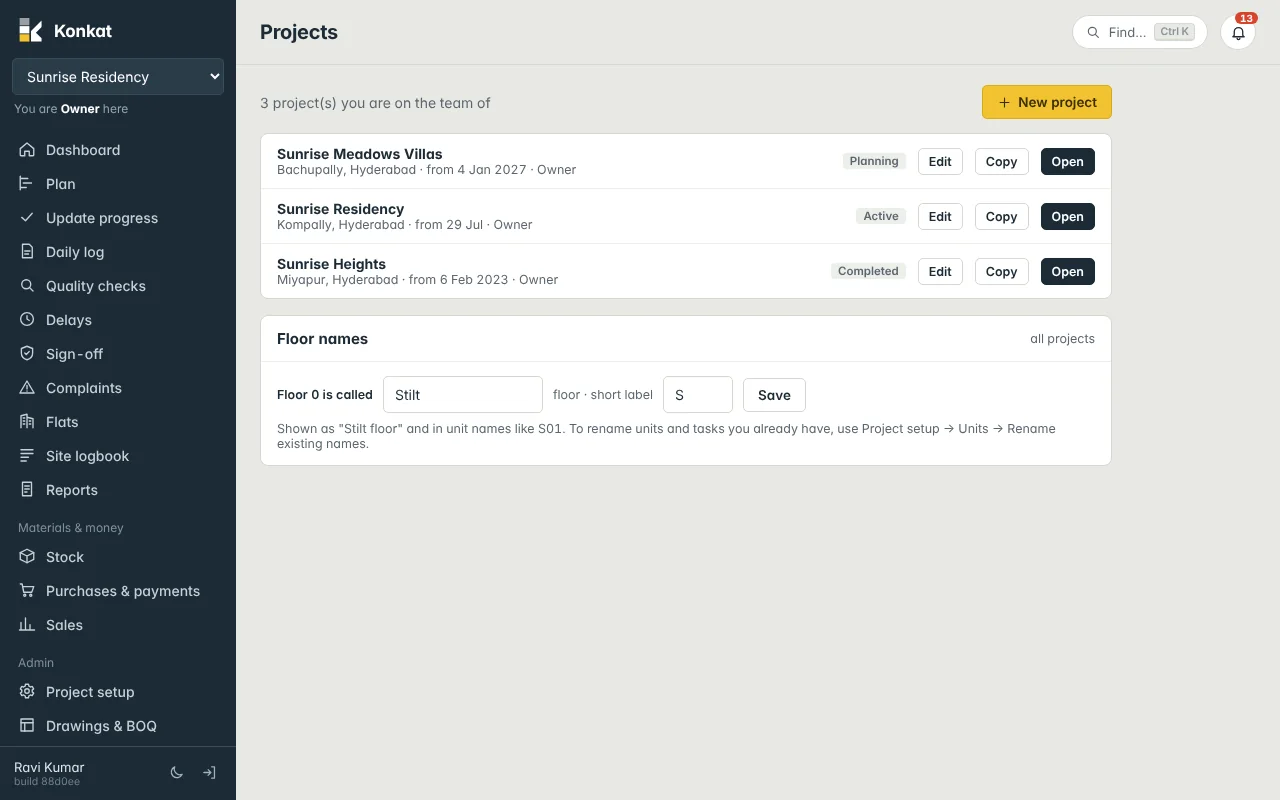
Name floor 0 first#
On the Projects screen, an Owner or Admin can set what floor 0 is called on every project — for example Stilt with the short label S. Unit names on floor 0 use this label (S01, S02…). Do this before you create units so the names come out right. If you change it later, use Project setup → Units → Rename existing names… to update older units and tasks.
What the team sees#
As soon as you add someone to the Team, the project appears in their project switcher at the top of the left menu (or under More on a phone). What they can open depends on their role: a Supervisor does not see Project setup, a Storekeeper sees Stock but not Sales, and so on.
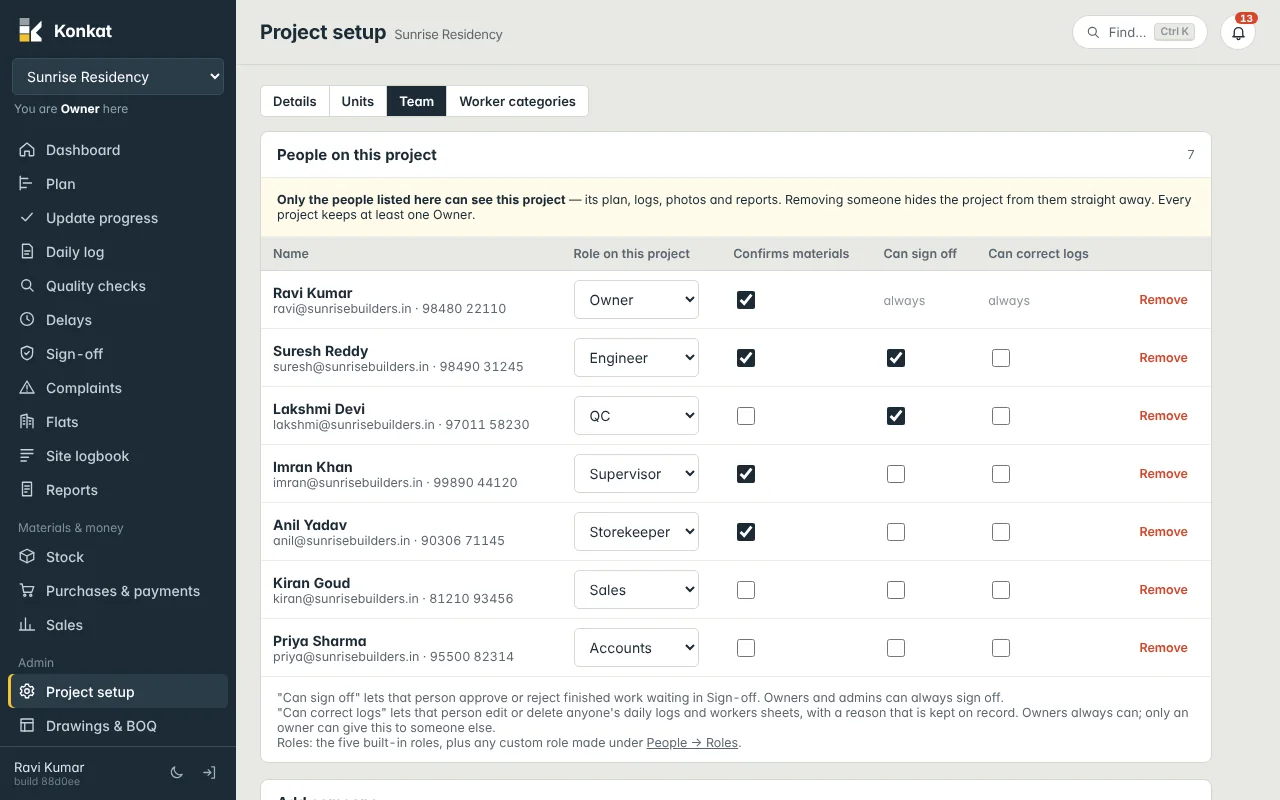
The person who creates a project is automatically its Owner. Every project must keep at least one Owner on its Team.
Copying a project you already have#
If your new building is like an old one, use Copy next to the old project on the Projects screen. It copies the whole plan — tasks, links, durations, materials lists and rooms — shifted to the new start date. Progress, logs and photos are not copied. See Create a project.
Common questions#
I don’t see New project.#
Only people whose account type is Owner or Admin can create projects. Ask an owner to change your account type under People.
Do I have to finish the units before planning?#
No, but tasks recorded Per flat & room pick up the flats on their floors. If you add flats later, Konkat adds them to those tasks automatically.
Can I start with a few people and add more later?#
Yes. Add people to the Team at any time; they see the whole history of the project from the moment they are added.