Update progress
Mark floors, flats or rooms Not started, In progress or Done from site in a few taps, with photos — and reopen finished work.
On this page
Update progress is the screen site people use most. Pick a task, tap the floors or flats, tap a status, save. The plan, the Dashboard and the reports update at once.
Open Update progress#
- Phone: Update in the bottom bar, or + → Update progress.
- Computer: Update progress in the left menu.
- From a task: the Update progress button on the task page, the Plan’s right-click menu or the task details panel — the task is already chosen.
Pick the task#
The task list is grouped so the right task is near the top:
- Assigned to you — tasks you are responsible for.
- Working now — in progress or overrunning.
- Awaiting sign-off.
- Starting soon — not started, due within 10 days.
- Finished — tap to reopen — recent finished work.
Type in Search tasks… to find anything else, including tasks starting later. To switch task, tap Change.
Update a task recorded per floor#
- Tap the floors under Floors — each tile shows its current status. Select all picks every floor.
- Tap a status — Not started, In progress or Done.
- Add photos if you have them — Camera or Choose photos.
- Tap Save update.
Update a task recorded per flat and room#
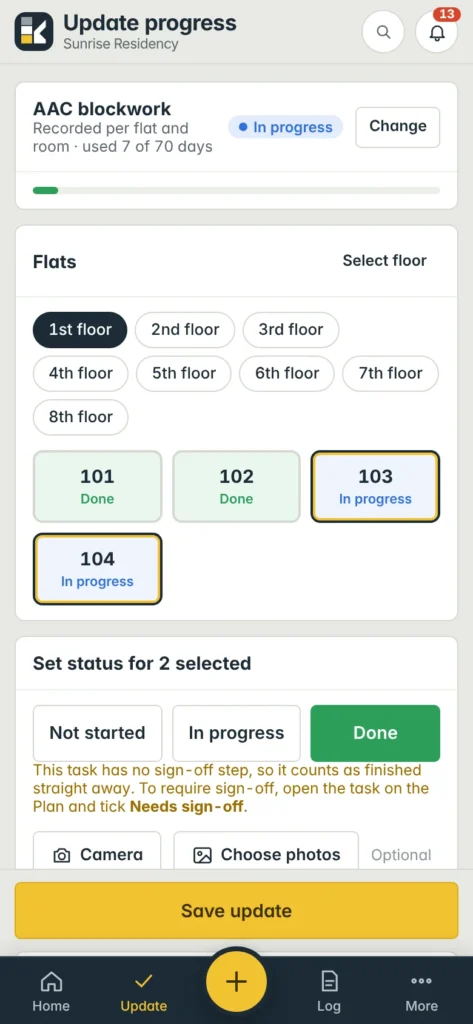
- Pick the floor — tap a floor chip, e.g. 1st floor.
- Tap the flats — e.g. 103 and 104. Select floor picks every flat on that floor.
- Pick rooms (optional) — when exactly one flat is selected and the task has rooms, tap the rooms you worked on (e.g. Bathroom). Leave all unselected to update every room.
- Tap a status, add photos, and tap Save update.
When there is only one choice#
If the task has only one floor — or the floor you picked has only one flat — Konkat selects it for you. You just tap the status and save.
Tasks without floors or flats#
Some tasks are not split by floor — e.g. the compound wall. The screen says Recorded for the whole task; just tap a status and save.
Done, sign-off and photos#
- If the task needs sign-off, Konkat says so when you tap Done: the work shows as Awaiting sign-off until someone allowed to sign off approves it. They get a notification. See Sign-off.
- If it doesn’t, Done counts as finished straight away. The yellow note tells you how to require sign-off: open the task on the Plan and tick Needs sign-off.
- If the task has Photo required when marked done, the Photo required label shows in red and Save update stays grey until you add a photo.
Photos taken here are labelled by stage — Completed for Done, In progress for In progress — and appear on the task page. See Photos.
Reopen finished work#
Finished something too early, or found a problem? Open the task (it is under Finished — tap to reopen), select the floors or flats and tap In progress (for a whole-task task, just tap In progress). Any sign-off on that work is withdrawn, so finishing again asks for a fresh one.
What happens when you save#
- The tiles change colour and the task’s progress bar moves on.
- The task’s status follows: In progress as soon as anything starts; Done (or Awaiting sign-off) when every floor or flat is done.
- The bar on the Plan fills, and the group above it updates too.
- A line is added to Recent updates on this task (open the panel at the bottom) and the Site logbook, with your name, time and photos.
Status taps don’t count days used. A day counts when someone sends a daily log on the task. See Daily log.
Common questions#
Can I update a flat from the Flats screen?#
Yes. Opening a flat and choosing a task brings you here with that flat already selected.
I marked the wrong floor done.#
Select it again and tap the right status. The history keeps both taps.