Leads and follow-ups
Record every enquiry, log calls, WhatsApp chats and site visits, and never miss a follow-up as leads move from New to Booked.
On this page
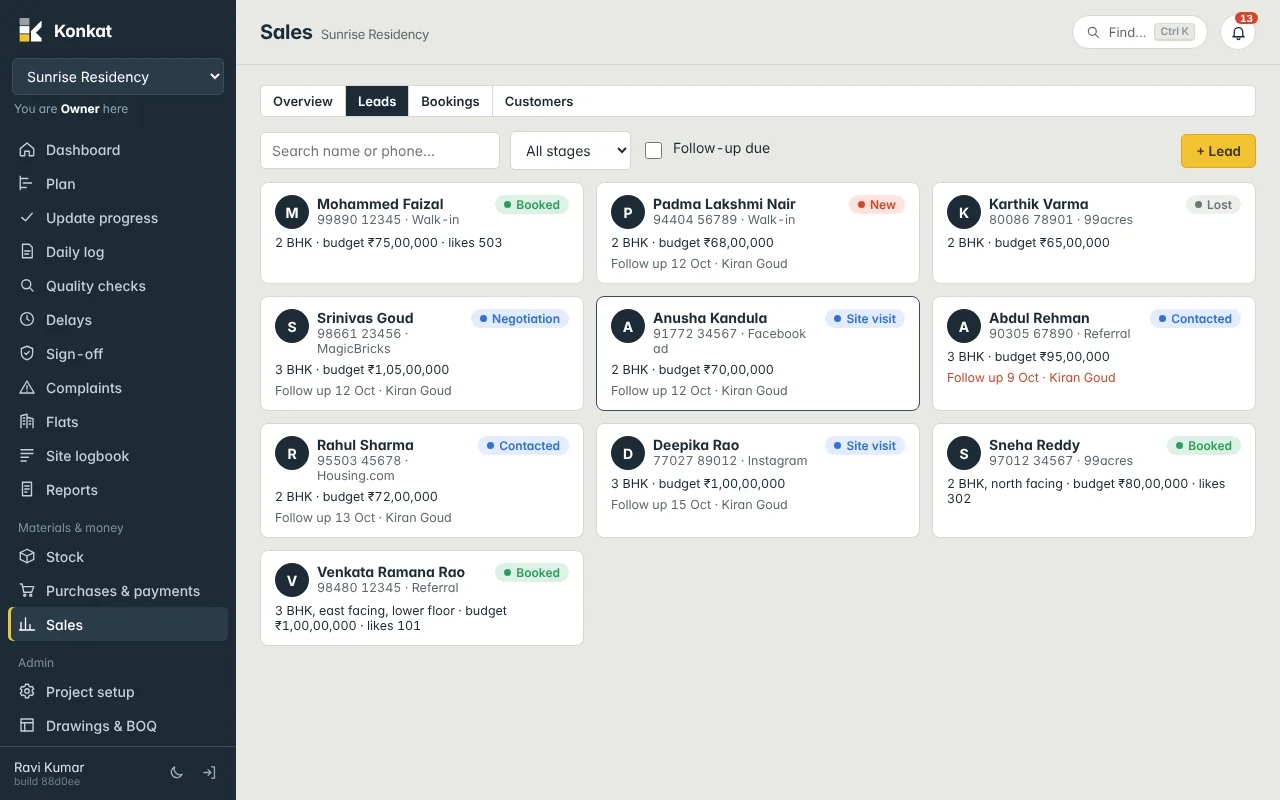
Sales in Konkat starts with leads — every walk-in, call, referral or portal enquiry for the project. You record each conversation with the next follow-up date, and Konkat shows who to call today.
Who can use Sales#
The Sales menu needs Sales (CRM) on the project — Owner and Admin by default, and a custom role such as “Sales” for your sales team (Kiran in the demo). Sales is per project: a lead belongs to one project.
The Overview tab#
- Follow-ups due — leads whose next follow-up is today or earlier (tap it to see them), Units booked, Sales value and Due from customers now.
- Leads — a count per stage; tap a stage to list those leads. + Lead adds one.
- Units — how many flats, villas, shops and offices are Available, Blocked, Booked, Sold or Not for sale. Prices and status are set in Project setup → Units.
- Collections — sales value, received, balance and how much of it is due now.
Add a lead#
- Open the form — Leads → + Lead, or on a phone the yellow + → New lead.
- Contact — Name and Phone (or Email; one of them is required). A phone number already used by a lead on this project is refused, so you don’t get duplicates.
- Source — Walk-in, Referral, Website, Facebook / Instagram, 99acres / MagicBricks, Hoarding, Broker, Other, or type your own.
- What they want — Looking for (e.g. “2 BHK east facing”), Budget ₹, and Interested in unit if they liked a particular flat (only unsold units are listed).
- Owner and next step — Handled by (you by default), Stage and Next follow-up (today by default).
- Save.
Stages#
| Stage | Typical meaning | How it is set |
|---|---|---|
| New | Enquiry received. | When added. |
| Contacted | You have spoken to them. | Automatically on the first recorded call, WhatsApp, meeting… |
| Site visit | They have seen the site or sample flat. | Automatically when you record a Site visit on a New or Contacted lead. |
| Negotiation | Discussing price, floor, facing, payment plan. | Chosen by you. |
| Booked | A unit has been booked. | Only by booking a unit — you can’t pick it by hand. |
| Lost | Not going ahead. | Chosen by you, with Why lost? (e.g. “Bought elsewhere, budget”). |
Record a call or visit#
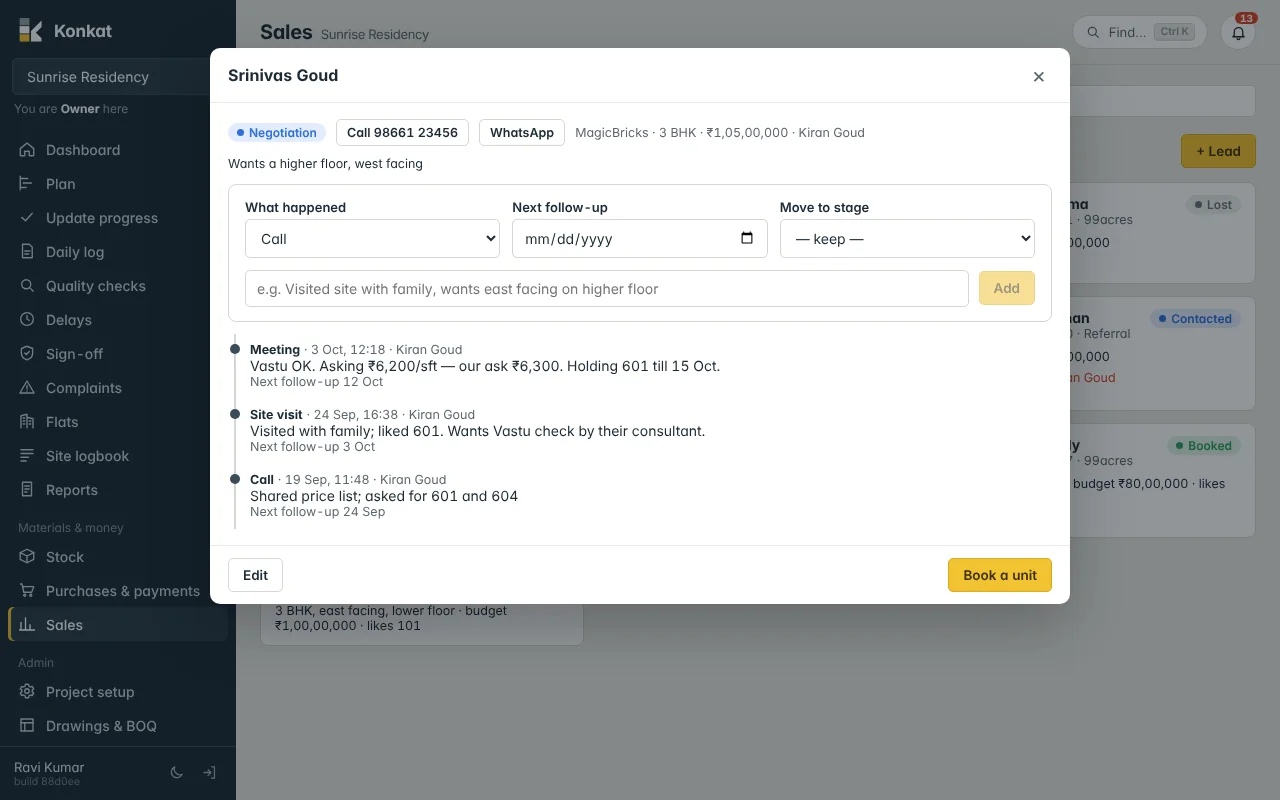
Tap a lead. At the top are Call and WhatsApp buttons (a 10-digit number gets +91 added for WhatsApp). Below is a box to record what happened:
- What happened — Call, WhatsApp, Site visit, Meeting, Email or Note.
- Next follow-up — the date to contact them again.
- Move to stage — leave — keep — or choose a new stage.
- Write the note and Add — e.g. “Visited site with family, wants east facing on higher floor”.
The lead’s next follow-up becomes the date you enter here. If you leave it empty, the lead has no follow-up date and drops out of Follow-up due — always set the next date unless the lead is closed.
Every entry stays in the lead’s timeline with the date, time and who recorded it.
Daily routine#
- Open Leads and tick Follow-up due (or tap the tile on Overview).
- Call each one from the lead, record what happened and the next date.
- Use Search name or phone… when someone calls back, and All stages to look at one stage.
From lead to booking#
When they decide, press Book a unit on the lead. The booking form opens with their name, phone and preferred unit filled in; on saving, the lead becomes Booked and a customer is created. See Bookings.
Konkat’s Sales is its own simple CRM and is separate from the ERPNext/Frappe CRM. Nothing is written to ERPNext. See Konkat and ERPNext.