Photos
Take site photos with Konkat's multi-shot camera (stamped Live) or pick them from the gallery (stamped Uploaded), label the stage, and view them by task.
On this page
Photos are the proof behind every update. Konkat lets you add them wherever you record work — progress updates, daily logs, the workers sheet, QC checks, sign-offs and complaints — and keeps them with the record and the task.
Where you can add photos#
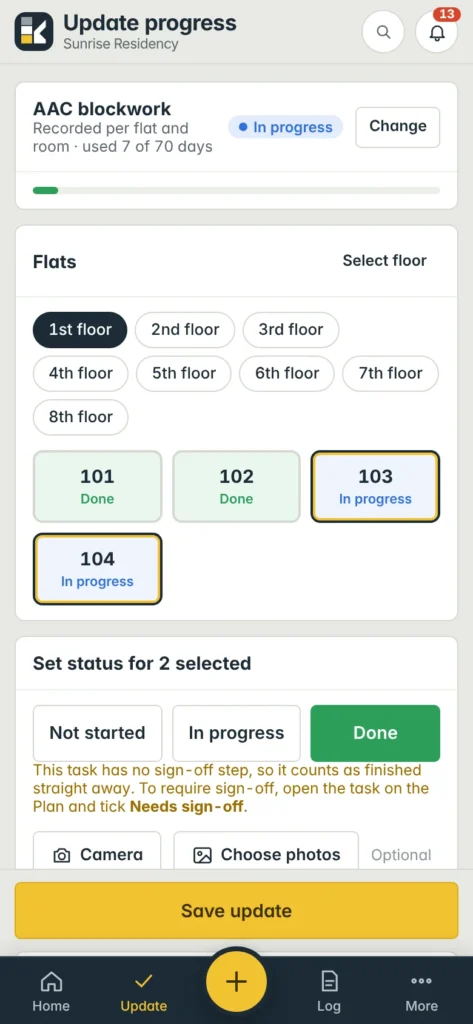
Look for the Camera and Choose photos buttons on:
- Update progress — before you tap Save update.
- Daily log — in the Photos panel.
- Workers sheet — the camera button on each crew row.
- Quality checks, Sign-off and Complaints.
Take photos with the Camera#
- Tap Camera — Konkat’s own camera opens full screen. The first time, allow camera access.
- Tap the shutter as many times as you like. Each shot flashes, appears as a small thumbnail at the bottom, and starts uploading in the background while you keep shooting. The top shows the count, e.g. 5 photos · uploading 2.
- Switch camera with ⟲ if you need the front camera.
- Tap Done (or × to close).
Photos taken this way are stamped Live — taken in the app at that moment. On a computer you can also press Space or Enter to take a shot and Esc to close.
If the in-app camera can’t start (permission refused or an older phone), Konkat opens the phone’s own camera instead. You can also choose that yourself with the Phone camera link under the buttons — it takes one photo per tap.
Pick photos from the gallery#
Tap Choose photos and select one or several photos. These are stamped Uploaded, and Konkat keeps the time the photo was taken from the file where it can.
The Live / Uploaded badge shows on every photo, in reports too. It tells the office whether a photo was taken on the spot or picked from the phone later.
Uploading#
- Photos are made smaller on the phone before upload, so they go quickly even on weak signal.
- Two upload at a time; the rest wait their turn. The form shows Uploading 3… until they are done.
- If one fails, it shows the error and a Retry button.
- Tap × on a thumbnail to drop a photo before saving.
- A single photo can be up to 15 MB.
Photos are attached to the record when you save it. If you leave the form without saving, they are not attached to anything.
Label the stage#
Each thumbnail has a stage label you can change: Work started, In progress, Completed, QC check, Concern raised, After rectification or Other. Konkat picks a sensible one — Completed when you mark Done, In progress for In progress, Workers on the workers sheet. The label shows on the photo in the viewer and in reports.
Photo required#
Two settings can make a photo compulsory. The label next to the buttons then says Photo required in red instead of Optional:
- Photo required when marked done on a task — needed to mark it Done. See The task form.
- Must attach a photo to every log and QC entry on a person’s profile — needed for their daily logs and QC entries. See Team and people.
Viewing photos#
- The Photos tab on a task page collects every photo of that task.
- Updates in the Site logbook and on the task page show their photos as a strip.
- Tap any photo to open the viewer. Swipe left or right (or use the ‹ › arrows or keyboard arrows) for the next one; the top shows e.g. 3 / 12. The caption shows Live or Uploaded, the stage, the date and time, and who took it.
Common questions#
The camera shows a black screen.#
Hold the phone steady and tap again — Konkat warns if a frame comes out black. If it keeps happening, use Phone camera. Also check the browser has permission to use the camera.
Do photos work without signal?#
Uploading needs a connection. Photos you already viewed stay visible offline. See Weak signal and offline.