Material requests
Site asks for material, an approver decides, and approved material is sent from a store or bought on a purchase order.
A material request is how the site asks for material without phone calls getting lost. The site engineer asks, an approver decides how much to give, and the approved quantity is either sent from a store as a transfer or bought through a draft purchase order.
Who can do what#
| Step | Role right | Built-in roles |
|---|---|---|
| Ask for material | Request material | All |
| Approve or reject | Approve material requests | Owner, Admin |
| Send from a store | Stock in / out on the sending store | Owner, Admin, Engineer, Supervisor |
| Buy it (purchase order) | Purchase orders | Owner, Admin |
| Cancel | The person who asked, or an approver | — |
You can’t approve your own request — someone else has to, unless you are the project Owner.
Ways to ask#
- Stock → Requests → + Request material, or the Request material button on the Stock tab.
- On a phone: yellow + → Request material.
- From a task’s Materials list: when the site store is short for that task, a yellow bar says how many materials are short — press Request material and the shortage is filled in.
- From the Forecast (Request what’s needed) or Auto BOQ (Request shortfall).
Make a request#
- Needed by — the date the site needs it.
- Send from — a central store if you know where it should come from, or leave Decide later.
- For task — optional, e.g. 2nd floor slab concreting.
- Materials — each material and quantity in its stock unit (Bag, Kg, Cum…).
- Purpose / note — e.g. “Cement for 2nd floor slab pour on Friday”.
- Send request — everyone on the project who can approve requests gets a notification “Material request waiting for approval”.
Approve, send or buy#
Approvers see Approve / reject on waiting requests. In the dialog you can lower quantities if only part should be given (“Change the quantities if only part should be given.”), choose Send from (or Decide later / buy it), and add a Note — required to reject. The requester is told whether it was approved or rejected.
- Send from a store — choose the store and the quantities to send now. Konkat records a Transfer into the site store (“This records a transfer into Sunrise Residency — site store”). You can send in parts; the request shows Partly sent until everything approved has gone.
- Buy it (purchase order) — pick a supplier; Konkat makes a draft purchase order for what is still needed (approved quantity, or asked quantity if not yet approved, minus what was sent), at each material’s usual rate and GST, delivered to the site store. It opens so you can check rates and press Place order. See Purchase orders.
Statuses#
| Status | Meaning |
|---|---|
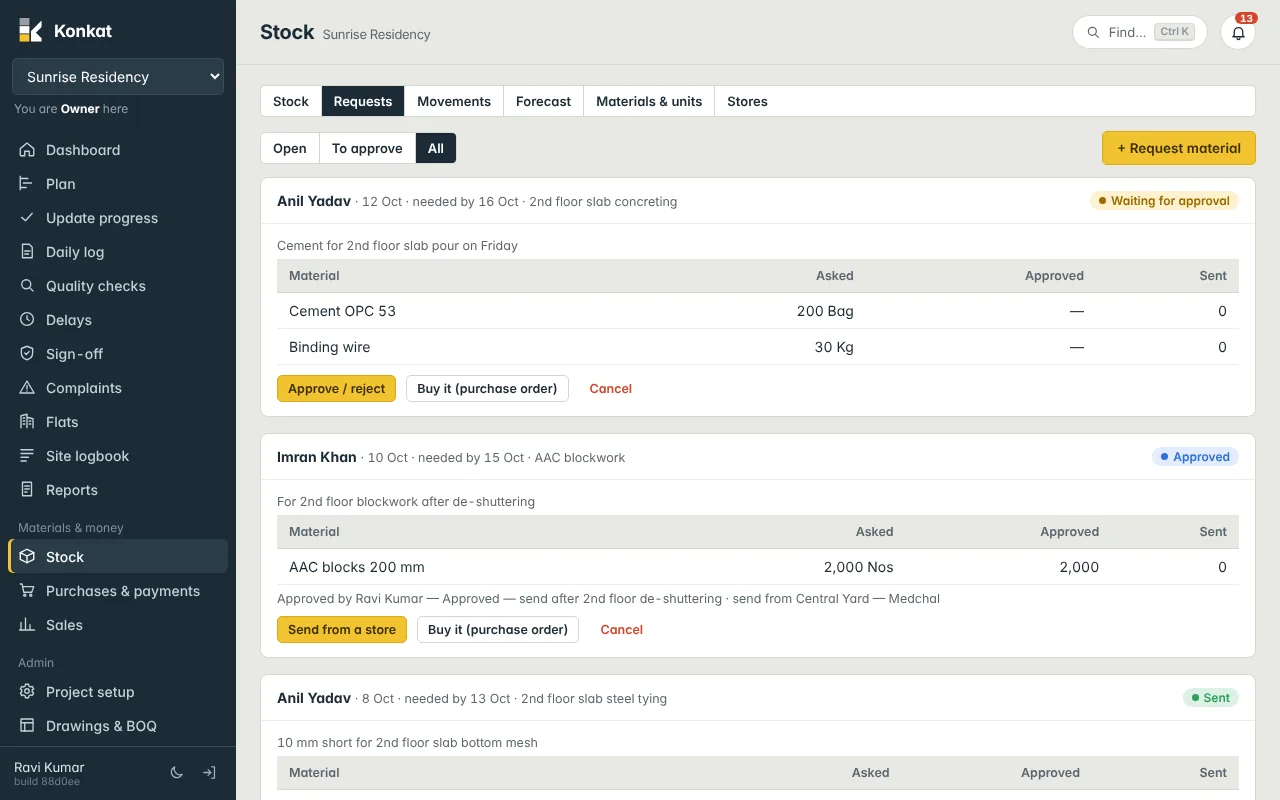
| Waiting for approval | Asked, not decided. Can be cancelled. |
| Approved | Approved quantities set; nothing sent yet. Can still be cancelled. |
| Partly sent | Some approved material has been transferred. |
| Sent | Everything approved has been transferred. |
| Rejected | Turned down with a reason. |
| Cancelled | Withdrawn before anything was sent. |
The filter buttons are Open (waiting, approved, partly sent), To approve and All. Each request shows Asked, Approved and Sent per material.
Worked example#
On 10 Oct Imran Khan asks for 2,000 Nos AAC blocks 200 mm for AAC blockwork, needed by 15 Oct. Ravi Kumar approves 2,000 and picks Central Yard — Medchal. On 12 Oct Anil sends 1,200 — status Partly sent — and the rest on 14 Oct — status Sent. The site store goes up by 2,000 Nos and the yard comes down by the same.
When you buy through a purchase order, the request itself stays Approved; the material comes into the site store when the delivery is received on the order.