Sign-off
Finished work that needs approval waits in Sign-off until an engineer, QC or the owner approves or rejects it.
On this page
Some work should only count as finished once a responsible person has looked at it — a slab before the next one starts, a lift well before the lift vendor arrives. Tasks marked Needs sign-off wait on the Sign-off screen after they are marked done, until someone allowed to sign approves or rejects them.
Turn on sign-off for a task#
Sign-off is set per task in the task form:
- Open the task form — on the Plan, open or create the task.
- Tick Needs sign-off — “Needs sign-off before it counts as finished”.
- Choose who signs off this task — tap names to pick them. Anyone picked here can sign it off. Pick nobody to allow everyone with Can sign off on the project.
- Decide one or all — if you picked two or more people, tick All of them must sign (otherwise any one is enough) when every one of them must approve.
- Save the task.
A new task made in the task form has Needs sign-off ticked already (ancillary tasks don’t). Untick it for work that needs no approval.
Who can sign off#
- Owners and admins can always sign off.
- People ticked on the task under Who signs off this task.
- When nobody is picked on the task: everyone with Can sign off ticked in Project setup → Team. When you add an Engineer or QC to the team this tick is on by default; for others you tick it yourself. See Team and people.
The Sign-off menu item appears for people who can sign off on the project. Everyone allowed to sign gets a notification “Sign-off needed: task” when work arrives.
What waits for sign-off#
- Floor-wise tasks are signed off floor by floor. When the 2nd floor of Concrete pouring is marked done, a 2nd floor sign-off waits — the other floors carry on.
- Flat-wise and whole tasks are signed off once, when the whole task is done.
While waiting, the task or floor shows Awaiting sign-off. After approval it becomes Verified, and tasks linked after it are free to start. See Links and dependencies.
Approve or reject#
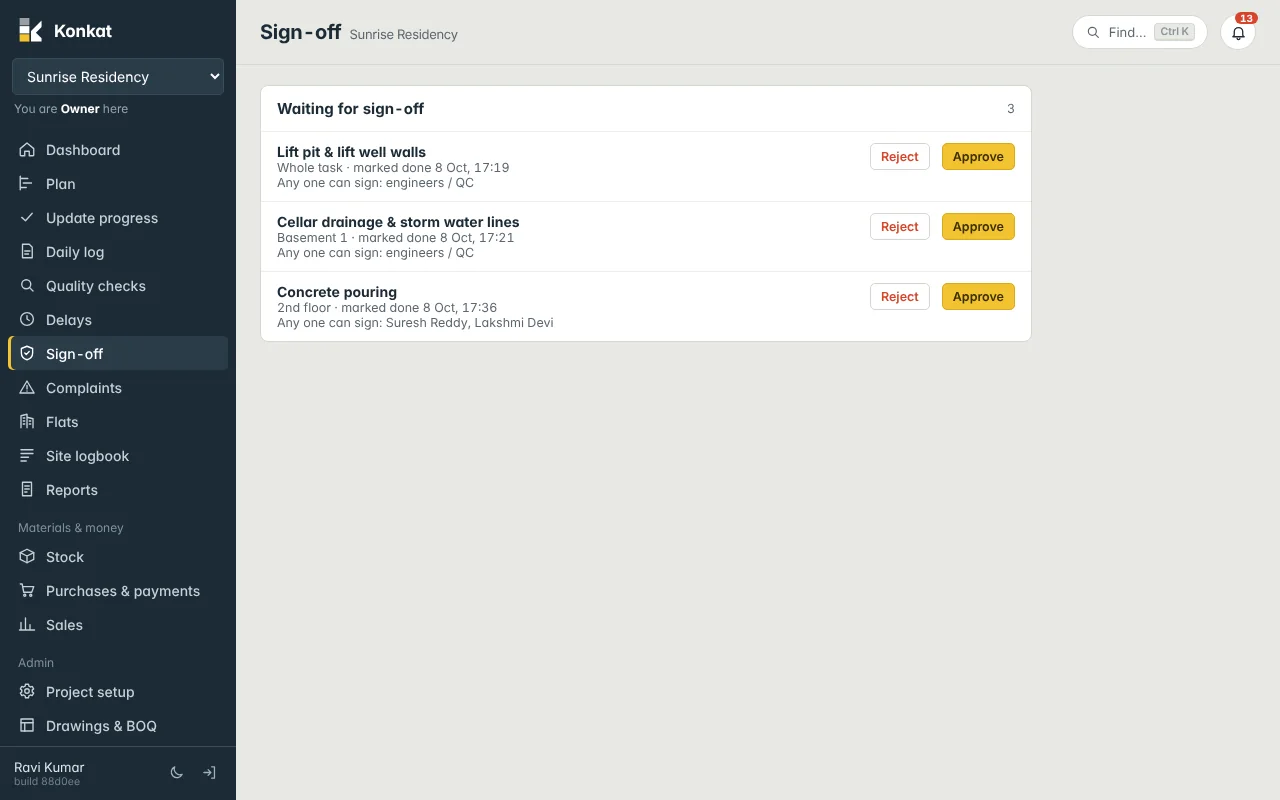
Each line shows the task, the floor (or Whole task), when it was marked done, and who may sign — “Any one can sign” or “All must sign” with their names. If you are not allowed, the line says Not assigned to you.
- Inspect the work — on site or from the photos on the task page.
- Approve — press Approve, add an optional note and photos, and confirm. Konkat shows “Sign-off recorded”.
- Or reject — press Reject, write What needs redoing?, add photos and confirm. The floor, the flat’s rooms or the task goes back to In progress with your note on record.
| Setting | When is it Verified? |
|---|---|
| Any one can sign | As soon as one allowed person approves. |
| All must sign | When every picked person has approved. The list shows “2 signed” etc. meanwhile. |
| Owner or admin approves | Immediately, even if “All must sign” is set. |
If finished work is reopened (marked back from done on Update progress), the earlier sign-off is retired and a fresh sign-off is asked for when it is finished again. The history is kept.
Sign-off and customer payments#
A booking’s payment line can fall due “when a task is done”. Konkat treats Awaiting sign-off as done for this, so the instalment shows as due without waiting for the signature. See Customer payments.
Common questions#
I am picked on the task but don’t see Sign-off in the menu.#
The menu item follows the Can sign off tick on the team. Open the notification “Sign-off needed” to reach the screen, or ask the owner to tick Can sign off for you.
Can a rejected item come back?#
Yes. Once the site team fixes it and marks it done again, a new sign-off request appears.
How is this different from a QC check?#
Sign-off is the gate for finished work. Quality checks record inspections and concerns at any stage.