Purchase orders
Make purchase orders with quantities, rates and GST, place them with suppliers and follow them from draft to received.
On this page
A purchase order (PO) records what you have ordered from a supplier, at what rate, and where it should be delivered. Deliveries received against it go straight into stock at the order’s rate, and payments against it show what is still due.
Who can do what#
| Action | Role right |
|---|---|
| Open Purchases and see orders (quantities) | Purchase orders, Payments & money or Stock in / out |
| See rates, amounts, paid and due | Purchase orders or Payments & money |
| Make, edit, place, cancel, close | Purchase orders (Owner, Admin by default) |
| Receive delivery | Purchase orders or Stock in / out |
| Record payment | Payments & money |
A Storekeeper role with stock rights but no money rights sees each order’s materials and quantities — no rates, totals or payments — and can receive deliveries.
Make a purchase order#
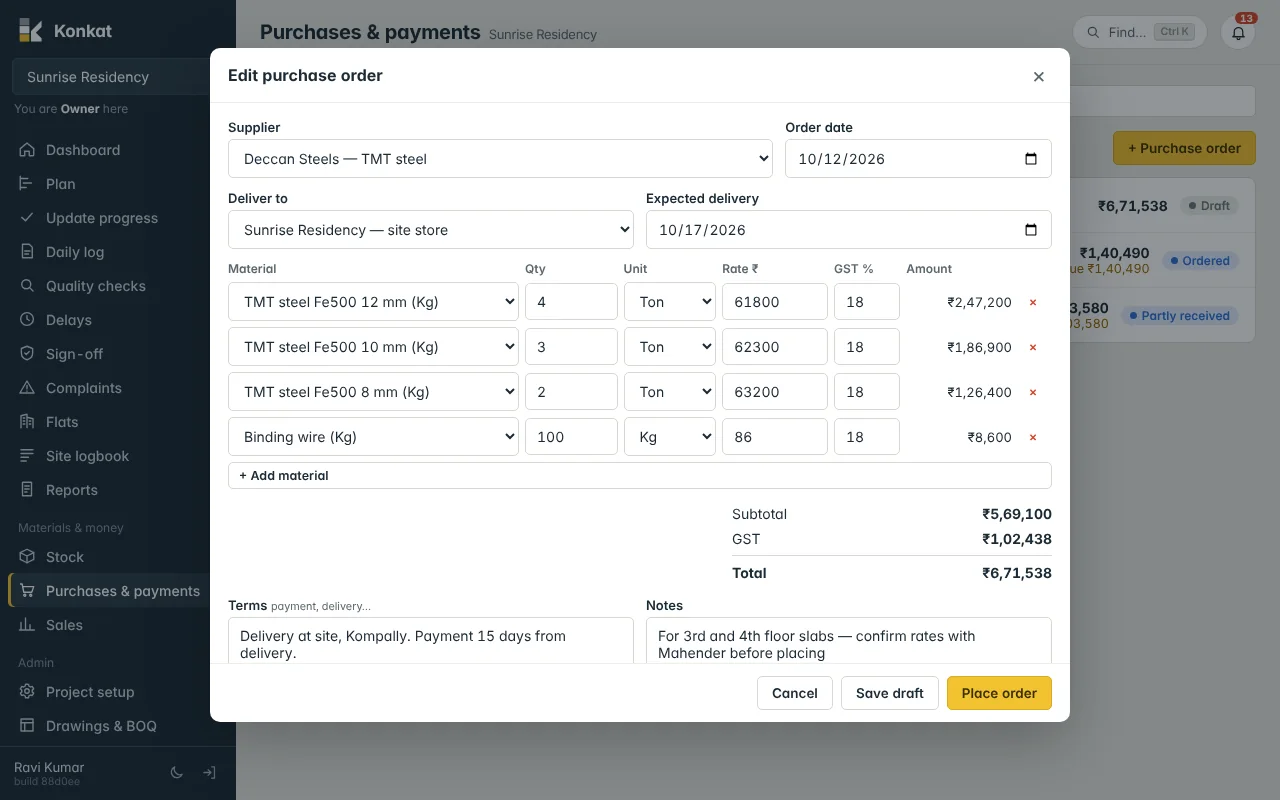
- Start — Purchases & payments → Purchase orders → + Purchase order. Orders can also start from a supplier’s page (New order), a material request (Buy it (purchase order)), the forecast (Order what’s needed) or Auto BOQ (Order shortfall).
- Supplier — choose a supplier or subcontractor, or + New supplier….
- Dates and delivery — Order date, Expected delivery, and Deliver to (the site store by default, or a central store).
- Lines — for each line pick the Material, Qty, Unit (the bought-in unit is chosen first, e.g. Ton for steel, Brass for sand), Rate ₹ per that unit and GST %. The rate starts from the material’s usual rate (converted to the bought-in unit) and GST from the material — change both to the quoted price.
- Check totals — Subtotal, GST and Total update as you type.
- Terms and notes — e.g. “Delivery at site, Kompally. Payment 15 days from delivery.”
- Save draft or Place order.
Worked example#
| Material | Qty | Rate | Amount | GST |
|---|---|---|---|---|
| TMT steel Fe500 12 mm | 4 Ton | ₹61,800 | ₹2,47,200 | 18% = ₹44,496 |
| Cement OPC 53 | 200 Bag | ₹375 | ₹75,000 | 28% = ₹21,000 |
| M-sand | 10 Brass | ₹5,377 | ₹53,770 | 5% = ₹2,688.50 |
Subtotal ₹3,75,970 + GST ₹68,184.50 = Total ₹4,44,154.50. GST is a simple percentage per line — Konkat doesn’t split it into CGST/SGST or track input credit.
Statuses#
| Status | Meaning | You can |
|---|---|---|
| Draft | Being prepared; not counted anywhere. | Edit, Place order, Cancel order |
| Ordered | Placed with the supplier; counts as on order. | Receive delivery, Record payment, Cancel order |
| Partly received | Some lines or part quantities have arrived. | Receive delivery, Record payment, Close |
| Received | Everything ordered has arrived. | Record payment, Close |
| Closed | Finished; nothing more will be received. | Record payment |
| Cancelled | Called off before anything arrived. | — |
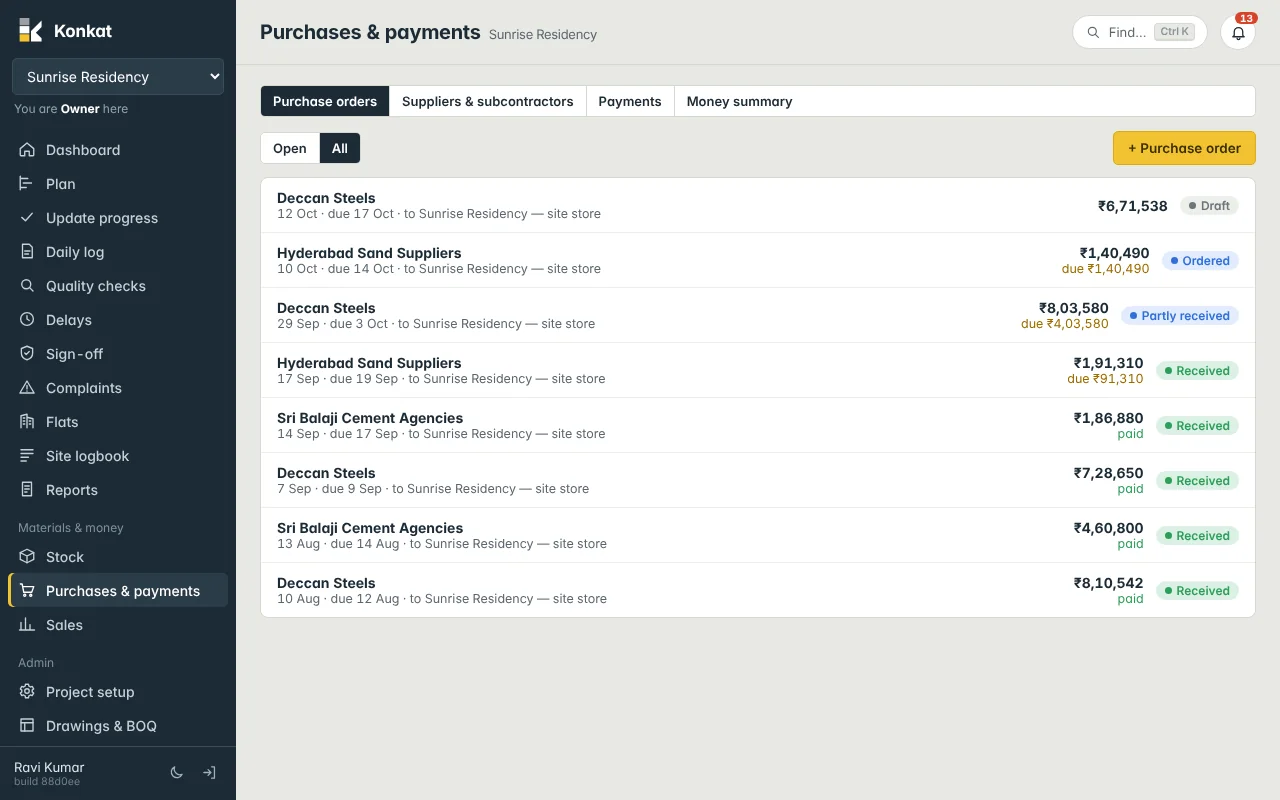
An order can’t be cancelled once anything has been received on it. Use Close for an order where the supplier will not send the rest (“Close this order? Nothing more will be received on it.”). The list has Open (draft, ordered, partly received) and All; each line shows the total and either due ₹… or paid.
Print / PDF#
Open an order and press Print / PDF. A clean page opens with your company name, the project, supplier, order number, dates, deliver-to store, lines with rate, GST and amount, totals and terms. Use your browser’s print dialog to print or save as PDF and send it on WhatsApp or email. Allow pop-ups if nothing opens.
Where orders show up#
- Forecast — “On order” counts Ordered and Partly received quantities. See Stock forecast.
- Auto BOQ — “Ordered” and “Received” columns. See Auto BOQ.
- Money summary — “Ordered (POs)” and what is still to pay. See Money summary.
Konkat purchase orders are separate from ERPNext Purchase Orders and post nothing to ERPNext accounts. See Konkat and ERPNext.