Team and people
Create logins on the People screen, add people to a project's Team with a role, and set Confirms materials, Can sign off and Can correct logs.
On this page
Konkat keeps two lists of people. People is everyone in your company who has a Konkat login. A project’s Team is the people who work on that project, each with a role. Someone can be on many Teams with a different role on each.
Only the people on a project’s Team can see that project — its plan, logs, photos and reports. Removing someone from the Team hides the project from them straight away.
The People screen: logins#
Open People (Admin group in the menu). It lists everyone with a login, with their email, phone and account type. Search by name, email or phone.
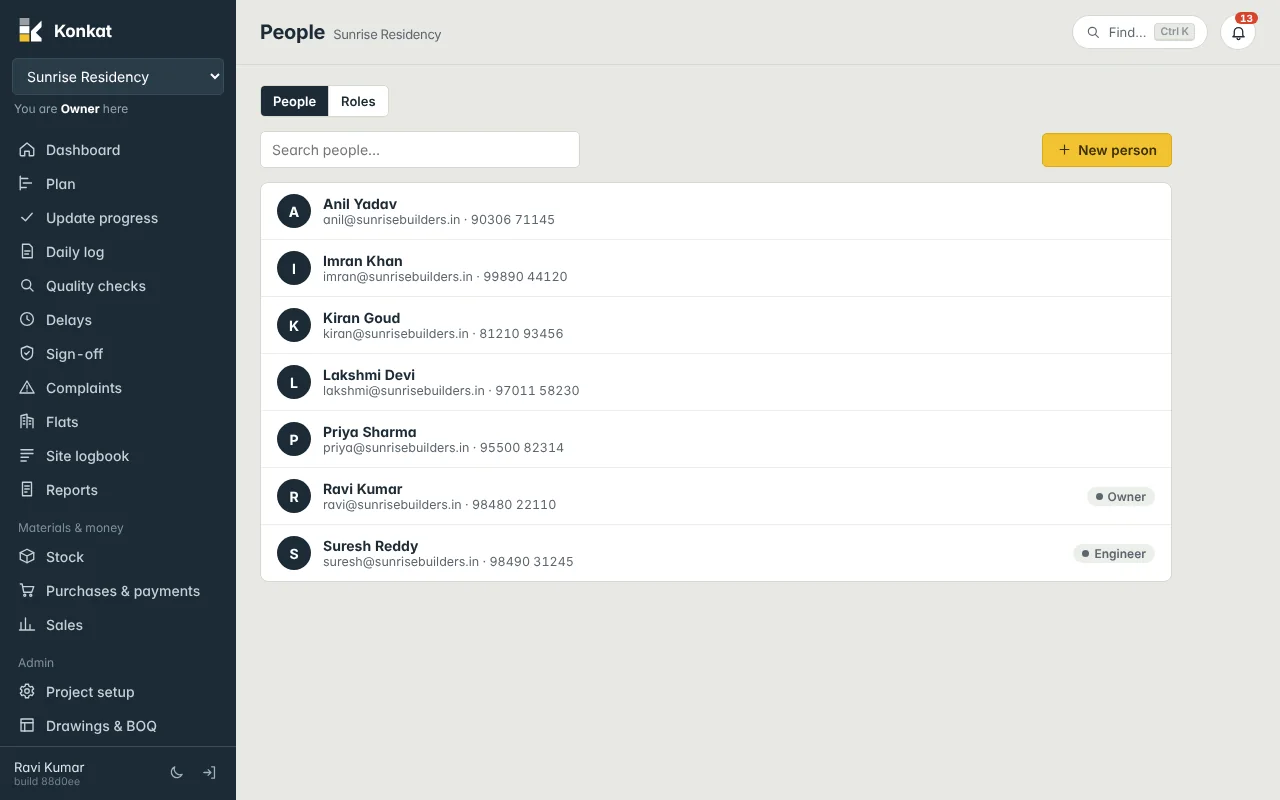
Create a login#
- Tap New person.
- Fill the details — Name, Email (login id), Password for their first sign-in (use Show to check it) and Phone.
- Choose the Account type — leave it as None — works only on the projects they are added to for most people. Choose Owner or Admin only for people who should create projects and logins.
- Optional — tick Must attach a photo to every log and QC entry for someone whose entries should always have proof.
- Tap Create login — then tell the person their email and password.
To change someone later, tap their name. You can set a New password (leave blank to keep the old one) or untick Active (can sign in) when they leave the company — their past records stay.
The Account type only matters for creating projects and logins. What someone can do on a project comes from their role on that project’s Team. Only an owner can create another owner or change an owner’s login.
The Team: who works on this project#
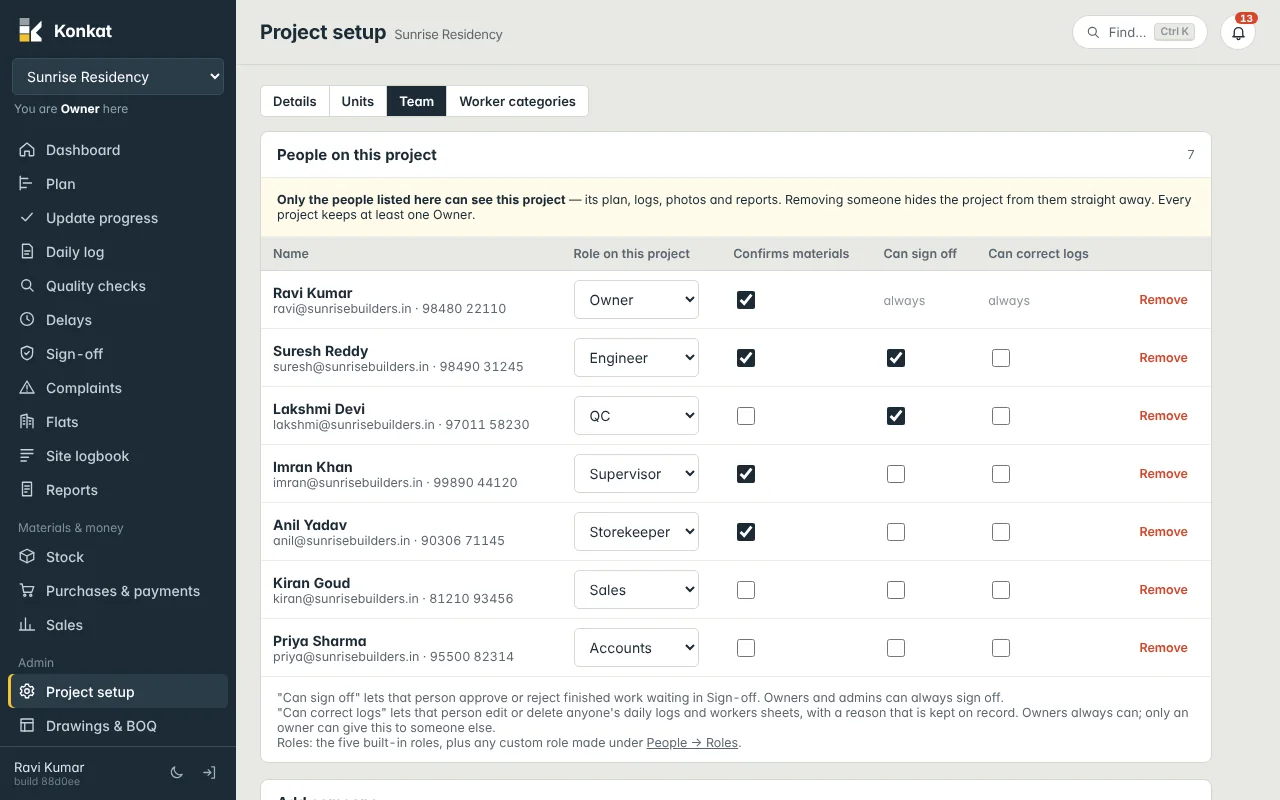
Open Project setup → Team. The table People on this project lists each member with:
- Role on this project — change it from the drop-down; it takes effect at once.
- Confirms materials — may tick materials as physically on site in a task’s materials checklist.
- Can sign off — may approve or reject finished work waiting in Sign-off. Owners and admins always can (shown as always).
- Can correct logs — may edit or delete anyone’s daily logs and workers sheets, with a reason kept on record. Owners always can. Only the project owner can give this to someone else.
- Remove — takes the person off the project.
Add someone to the Team#
- Find them — in Add someone, type a name, email or phone. Pick the person from the list.
- Choose the Role — one of the five built-in roles or a custom role such as Storekeeper.
- Set the ticks — Confirms materials and Can sign off. Can sign off is ticked for you when you pick Engineer, QC or a role that includes Sign off work.
- Tap Add to project.
If the person has no login yet, tap + New person at the bottom of the search list. The same profile form opens; after Create login the person is picked for you — choose the role and tap Add to project.
Tap a member’s name in the Team table to open their profile (Owners and Admins only).
Rules about owners#
- Every project keeps at least one Owner. To remove or change the last owner, first make someone else Owner.
- Only a project owner can make someone an Owner, change an owner’s role or remove an owner.
- Only the project owner can tick or untick Can correct logs.
Who can manage the Team#
People whose role includes Manage the project — Owner, Admin, or a custom role with that tick (for example a project manager). A project manager without an Owner/Admin account type can add new people but cannot change existing logins.
Common questions#
Someone left the company. What should I do?#
Remove them from each project’s Team, and on People untick Active (can sign in). Their logs, photos and sign-offs stay in the record under their name.
Can a supervisor sign off work?#
Yes, if you tick Can sign off for them on the Team, or pick them as a signer on a specific task. Note that the built-in Supervisor role does not include Sign off work, so Sign-off is not in their menu; they reach it from the sign-off notification or the Awaiting sign-off tile on the Dashboard. If supervisors sign off often, give them a custom role that includes Sign off work. See Sign-off.
A person says they can’t see the project.#
Check they are on that project’s Team and that Active (can sign in) is ticked on their profile.