Project settings
Project setup → Details (name, dates, status, material reminder, plan-for-next window, plan-change reason) and Worker categories.
On this page
Project setup holds everything about how a project is set up. It has four tabs: Details, Units, Team and Worker categories. This article covers Details and Worker categories; Units and Team have their own articles.
You see Project setup only if your role on the project includes Manage the project (Owner, Admin, or a custom role with that tick).
Details#
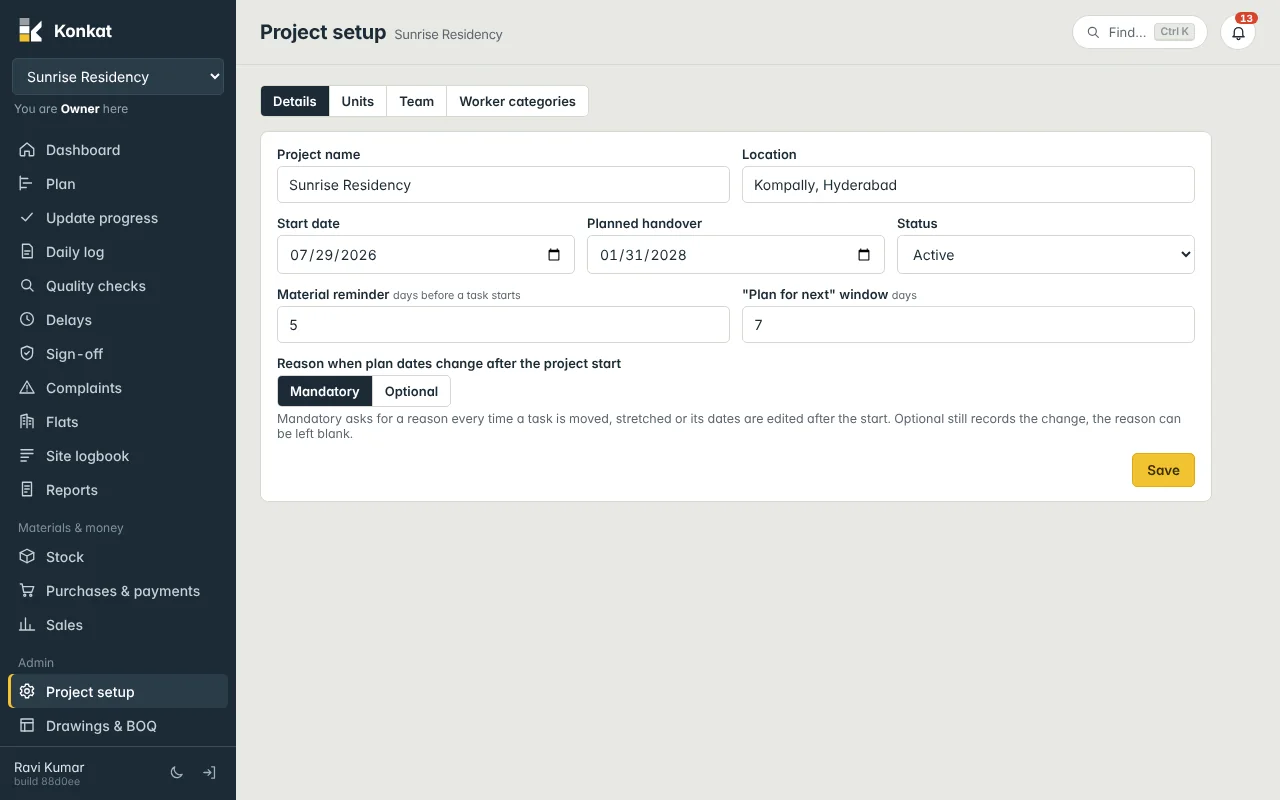
| Field | What it does |
|---|---|
| Project name, Location | Shown in the project switcher, at the top of every screen and on printed reports. |
| Start date | The day work starts on site. From this date the project counts as started and plan changes are recorded with a reason. |
| Planned handover | The target finish. The Gantt chart extends at least to this date. |
| Status | Planning, Active, On hold or Completed. Shown on the Projects list. |
| Material reminder days before a task starts | How many days ahead Konkat warns about tasks whose materials are not yet confirmed on site. Default 5. |
| “Plan for next” window days | The project’s look-ahead for upcoming work, in days. Default 7. On the Dashboard, the Plan for next panel has its own buttons (3, 7, 14, 30 days or Dates…), and each person’s choice is remembered on their device. |
| Reason when plan dates change after the project start | Mandatory or Optional — see below. |
Change what you need and tap Save.
Reason for plan changes: Mandatory or Optional#
Once a project has started, Konkat keeps the original plan and records every date change as a revision: who changed it, when, old and new start, old and new duration, and why.
- Mandatory (the default) — Konkat asks for a reason every time a task is moved, stretched or its dates are edited after the start, and will not save without one.
- Optional — the change is still recorded, but the reason can be left blank.
Mandatory gives you a better record when a client or bank asks why handover moved. Optional is quicker while the plan is still settling. See Plan changes after the start.
Changing the Start date changes when the project counts as started. If you move the start date into the future, plan changes stop being recorded as revisions until that date.
Worker categories#
Worker types — Head mason, Assistant mason, Bar bender, Centring worker, Tile setter, Electrician, Plumber, Painter, Carpenter, Helper, Supervisor, Wage worker (male), Wage worker (female) — are used in the workers sheet, in crew counts on daily logs and in a task’s planned crew. The Worker categories tab manages the list.
The table shows each Worker type, its Trade, its Order in lists, and where it is Used in: This project or All projects.
- Tap + Add.
- Fill the type — Worker type (e.g. Wage worker (female)), Trade (e.g. Civil) and Order in lists (lower numbers show first).
- Choose Available in — This project only or All projects.
- Tap Save.
- Edit changes the name, trade or order.
- Hide takes a type out of the lists without deleting it; Show brings it back.
- Delete removes a type that was never used. A type already used in a log is hidden instead, so old reports keep their meaning.
Types shared by all projects can only be changed by people who manage at least one project. Site people can also add a type on the spot with + Worker type on the workers sheet or the task page, if their role includes Manage the project.
Floor names#
What floor 0 is called (Stilt, Ground…) is set for all projects on the Projects screen, not here. See Create a project.
Common questions#
I set Optional, but Konkat still shows a reason box.#
That’s expected. The box appears so you can add a reason if you want; with Optional you can leave it blank.
Why can’t I see Project setup?#
Your role doesn’t include Manage the project. Ask the owner. See Roles and permissions.