Links and dependencies
Link tasks so a delay pushes the work after it: Link mode, the task form, link types (finish to start, start to start, finish to finish), gaps and overlaps, and the critical path.
On this page
A link says “this task waits for that one”. Links are what make the plan useful: when steel tying runs two days late, the concreting, curing and the next floor’s centring move with it, and you see the new finish date straight away.
Three ways to make a link#
1. Link mode on the Plan#
- Tap Link in the toolbar. The hint says Click the task that comes first.
- Click the first task — e.g. 2nd floor slab steel tying.
- Click the task that follows — e.g. 2nd floor slab concreting. Konkat says Linked and draws the arrow.
- Carry on or stop — link more pairs, or press Esc (or tap Link again) to go back to Select.
2. In the task form#
Open the task and use Comes after and Comes before. Pick tasks from + Add a task this comes after… / + Add a task that comes after this…, or tap a Suggested: chip. See The task form.
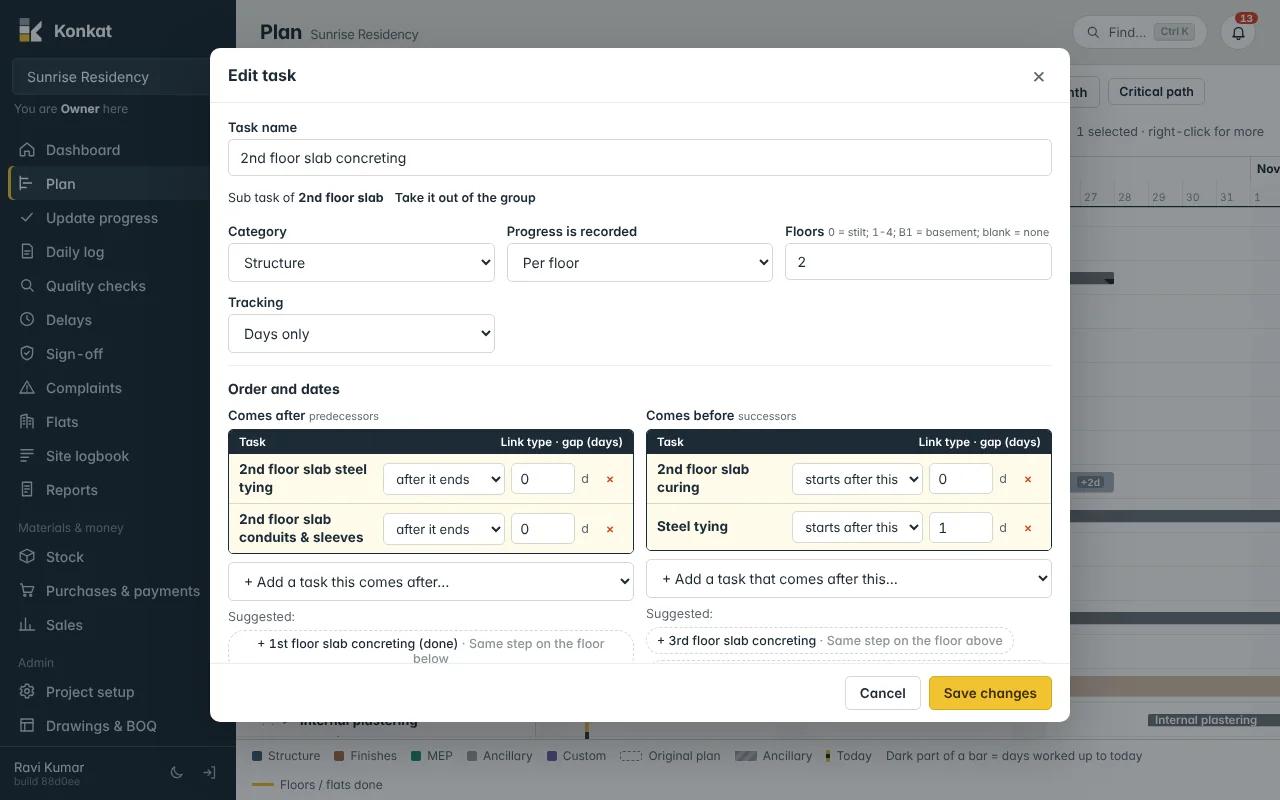
3. Automatically#
Templates add their steps already linked one after another, and Add ancillary task links curing or cleaning to its main task. Pasting or duplicating a group recreates the links inside it.
Link types#
| Type | In the task form | Means | Example |
|---|---|---|---|
| Finish to start | after it ends / starts after this | B starts when A finishes. | Concreting after steel tying. |
| Start to start | when it starts / starts with this | B starts when A starts. | Conduits start with shuttering. |
| Finish to finish | ends with it / ends with this | B finishes when A finishes. | Electrical first fix ends with blockwork. |
Most links are finish to start, which is what Link mode makes.
Gap (lag) and overlap#
Every link has a gap in days. 1 means one day after — e.g. a day of curing before de-shuttering side forms. Half days are allowed. A negative gap means overlap — e.g. -2 lets plastering start two days before blockwork is fully done.
Change or remove a link#
- On the Plan — click an arrow. The Dependency window shows A → B; change the Type or Lag (days) and tap Save, or tap Delete link.
- In the task details panel (double-click a task) — under Links, each After … / Before … line has Remove.
- In the task form — change the type or gap in the row, or tap × to remove it.
Putting a task in between#
Say A is linked straight to C, and you add B between them. In B’s form, add A under Comes after. Konkat then suggests C under Comes before with the note Now follows A — put this task in between. Tap it, and Konkat replaces the old A → C link with A → B → C when you save.
What links do#
- Moving a task — when you drag or stretch a task, Konkat lists the linked tasks it would push and lets you Change and shift them or Change only this. See The Gantt chart.
- Running late — when a task uses more days than planned, or a delay adds days to it, Konkat works out how late each later task will start. Bars show +2d, and the Delays screen lists the knock-on effect. See Delays.
- Start right after — in the task form, this keeps a task’s start date following its predecessors.
- Plan for next — the Dashboard shows a task as waiting on earlier work until everything it comes after is finished.
Critical path#
Tap Critical path in the toolbar. Konkat highlights, in red, the chain of linked tasks that sets the project’s finish date. Any day lost on these tasks is a day lost on handover; tasks off the path have some slack.
Rules#
- A task can’t depend on itself.
- Loops are refused: if C already leads back to A, you can’t link A → C. Konkat says That link would make a loop.
- Link sub tasks, not groups. The task form only offers normal tasks; in Link mode, avoid clicking a group’s bar, because Konkat works out dates from the links between normal tasks.
Link the same step floor to floor — 1st floor slab concreting → 2nd floor slab centring — so a late slab pushes every floor above it. The task form suggests these as Same step on the floor below / above when names start with the floor.