Using Konkat on a phone
The bottom bar, the yellow + button, the More sheet, Find, the back arrow and pull-to-refresh — how to move around Konkat quickly on site.
On this page
Konkat is built to be used with one hand on site. On a phone the left menu is replaced by a bottom bar, a big yellow + button for recording things, and a More sheet with every screen. This article explains each of them.
The bottom bar#
The bar at the bottom of every screen has five buttons:
| Button | What it does |
|---|---|
| Home | Opens the dashboard of the current project. |
| Update | Opens Update progress — mark floors, flats or rooms as started or done. |
| + (yellow) | Opens “What do you want to record?” (see below). |
| Log | Opens the Daily log, where the Workers sheet is also a tab. |
| More | Opens the More sheet with every screen, the project switcher, dark mode, install and sign out. |
The + button: record something fast#
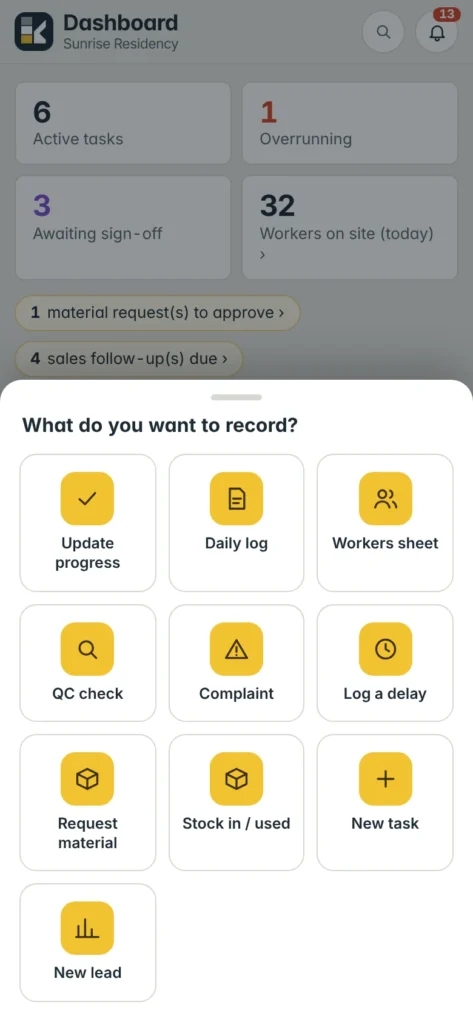
Tap the yellow + and choose what you want to record. Only actions your role allows are shown:
- Update progress, Daily log, Workers sheet
- QC check, Complaint, Log a delay
- Request material, Stock in / used
- New task, New lead
Each tile opens the right form directly, ready to fill. Tap outside the sheet or the grey handle at the top to close it.
The More sheet#
Tap More to see:
- Your name and your role on this project (for example “Owner on this project”), and the moon button to switch between light and dark mode.
- The project switcher, if you are on more than one project. Choosing another project reloads every screen for it.
- Tiles for every screen, grouped as Site, Materials & money and Admin. You only see the screens your role allows.
- Install Konkat on this phone (hidden once you use the installed app), Sign out, and the build number.
Find#
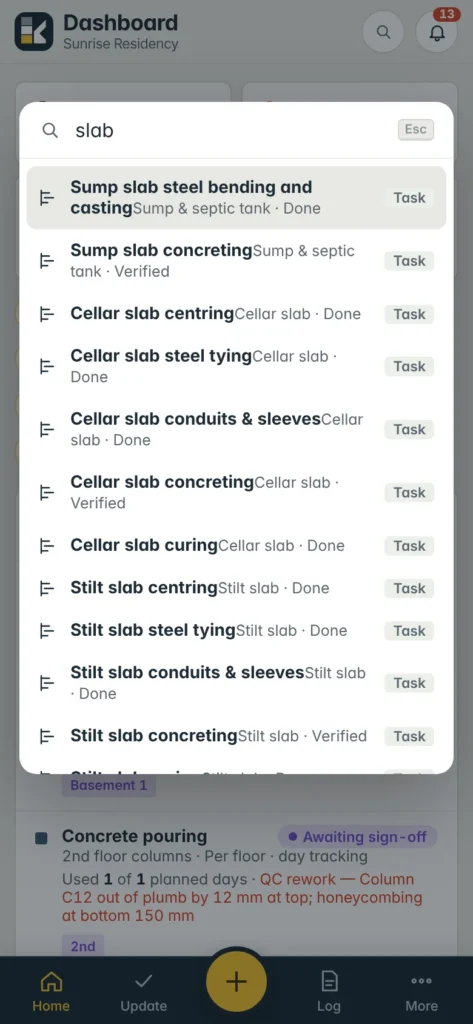
Tap the magnifying-glass button at the top right to open Find. Type a few letters to search:
- Screens — e.g. “stock”, “reports”.
- Actions — e.g. “delay” offers “Log a delay”.
- Tasks — e.g. “slab” lists every slab task with its group and status.
- Units — e.g. “302” opens flat 302.
- People on the project — tapping a person with a phone number starts a call.
You can type several words, e.g. “2nd slab”. On a computer press Ctrl + K (⌘ + K on a Mac) to open Find, use the arrow keys and Enter to choose, and Esc to close.
Going back and refreshing#
- Back — when you are inside a task, a flat, a QC entry or a form, a ‹ arrow appears at the top left. It returns you to where you came from. The phone’s own back button works too.
- Pull to refresh — at the top of any screen, pull down until the circle turns, then let go. Konkat reloads the screen and says “Refreshed”.
- Notifications — the bell at the top right. See Notifications.
Tips for site use#
- Tables become cards. Wide tables (like Planned vs actual) turn into one card per row on a phone, each value labelled.
- Photos. Camera opens a multi-shot camera — tap the shutter for each photo; they upload in the background. Choose photos picks from the gallery. Photos are shrunk on the phone before upload to save data. See Photos.
- Dark mode helps in bright sun on some phones and saves battery on others — try both.
- Keep the app installed. Opening from the icon is faster and copes better with weak signal. See Install the app.
Common questions#
A screen I need is not in More.#
Your role on this project doesn’t include it. Ask the project owner. See Roles and permissions.
Find doesn’t show tasks or units.#
Type at least one letter — with an empty box Find shows only screens. Units and tasks come from the selected project.