The dashboard
The home screen of a project: active tasks, overruns, sign-offs waiting, workers on site, what starts next and which materials are not confirmed.
On this page
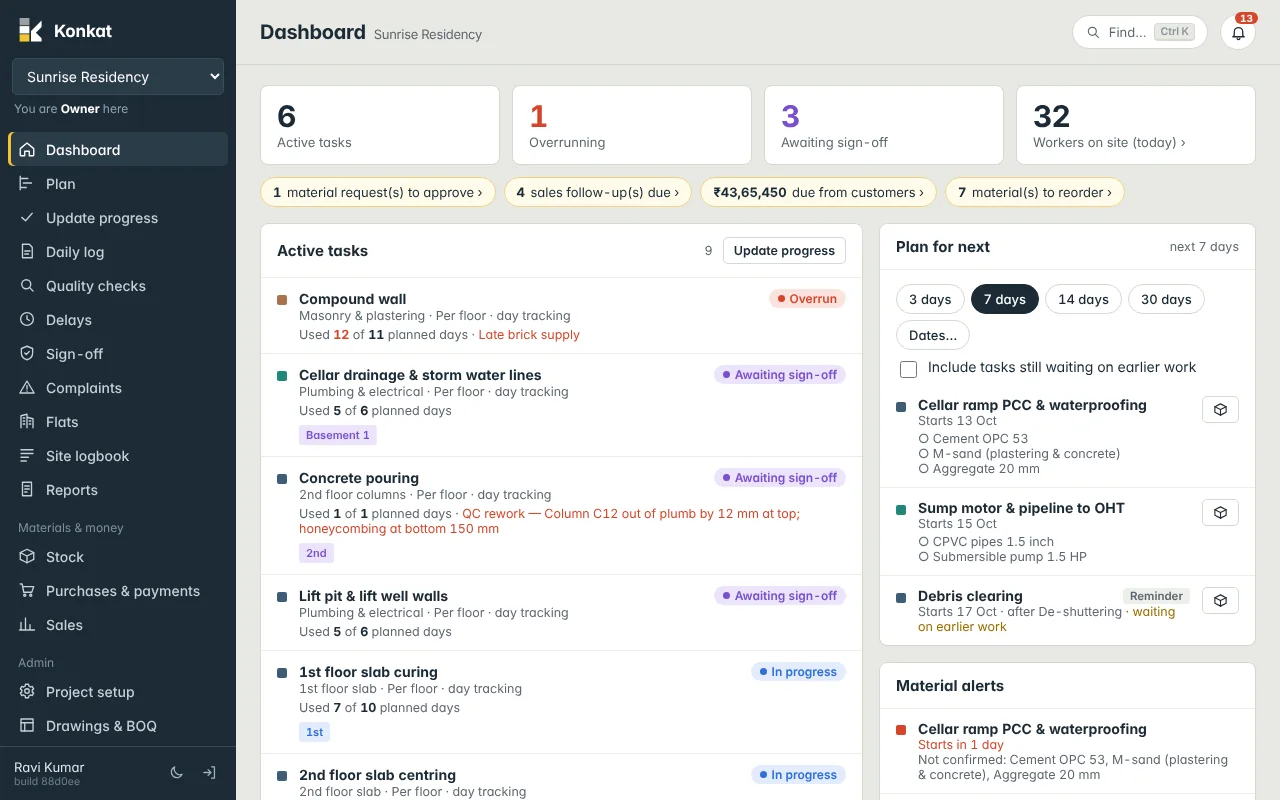
The dashboard is the first screen you see after signing in. It is the daily pulse of the selected project: what is in progress, what is late, what is waiting for you and what needs to be ready in the next few days.
Opening the dashboard#
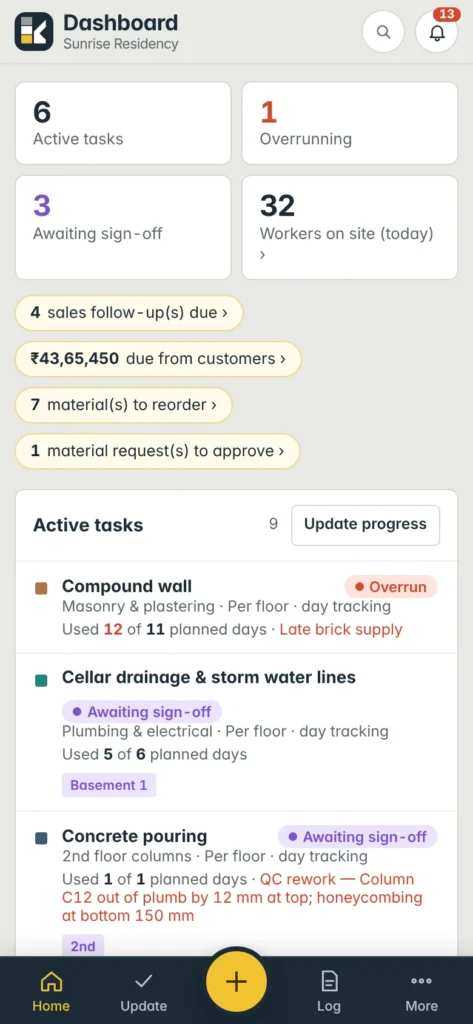
Click Dashboard at the top of the left menu, or tap Home in the bottom bar on a phone. The dashboard always shows the project selected in the project switcher (the box at the top of the left menu, or in More on a phone). Switch project there and the whole dashboard reloads.
Pull down at the top of the screen on a phone to refresh it. Everyone on the project’s Team can open the dashboard; the yellow chips and some panels only appear when your role allows the action behind them.
The four numbers at the top#
| Number | What it counts |
|---|---|
| Active tasks | Tasks that are In progress or Overrun. Group tasks (the parents of sub tasks) are not counted. |
| Overrunning | Tasks that have used more days than planned. Shown in red when it is more than zero. |
| Awaiting sign-off | Sign-off requests still open. Tap it to go to the Sign-off screen. |
| Workers on site | Today’s total from the Workers sheet. If no sheet is saved today it uses today’s daily logs; if there are none, it shows the last entry and says so, e.g. (last entry 2026-10-11). Tap it to jump to the Workers on site panel. |
Things waiting for you#
Below the numbers, yellow chips list work that is waiting for you. Each chip opens the right screen:
- material request(s) to approve — if your role can approve material requests. Opens Stock → Requests.
- complaint(s) assigned to you — open complaints assigned to you. Opens Complaints filtered to your list.
- sales follow-up(s) due and due from customers — if your role includes Sales (CRM).
- material(s) to reorder — materials the stock forecast has flagged. Opens Stock → Forecast.
When nothing is waiting, no chips are shown.
Active tasks and planned vs actual#
The Active tasks panel lists every task that is in progress, overrunning or awaiting sign-off. Overrunning tasks come first, then those awaiting sign-off. Each row shows:
- the task name, its group, whether it is recorded Per floor or Per flat, and its status;
- Used X of Y planned days — the used number turns red when it passes the plan;
- the latest delay reason, if a delay was logged (for example “Late brick supply” on the Compound wall);
- small coloured boxes for each floor or flat showing its status.
Tap a task to open its task page. The Update progress button at the top of the panel goes straight to the update screen.
The Planned vs actual (days) table shows the same tasks with their Original, Revised and Used days, On track or Overrun, and the overrun reason.
The Active tasks number at the top does not include tasks awaiting sign-off, but the Active tasks panel does. So the panel can list more tasks than the number shows.
Plan for next#
This panel answers “what do we need to get ready?”. Choose a range with the chips — 3 days, 7 days, 14 days, 30 days or Dates… for your own from–to dates. Konkat remembers your choice on this device.
- By default it lists tasks that are not started, are planned to start in the range, and whose earlier linked tasks are all finished. Overdue ones say Was due in red.
- Tick Include tasks still waiting on earlier work to see every planned start; those rows say waiting on earlier work.
- Ancillary tasks such as curing or debris clearing always appear, tagged Reminder.
- Under each task its materials are listed: ✓ means confirmed available, ○ means not confirmed yet. The box button opens the task’s materials list so you can confirm or request them.
Material alerts, My tasks, QC and workers#
- Material alerts — tasks starting within the project’s material reminder period (Project setup → Details, default 5 days) that still have unconfirmed materials. Red means it starts in 2 days or less (or should already have started). Tap a row to open its materials. “All clear” means every task starting soon is confirmed.
- My tasks — tasks where you are named as responsible and that are not finished. Only shown if you have some.
- QC — Assigned to you to fix and Open QC concerns, each opening the Quality checks screen.
- Workers on site — today’s Workers sheet row by row, with the tasks each crew is on. If today’s sheet is not filled, it shows the latest one with a note, and the button says Fill in today instead of Edit.
Common questions#
Why is a task not in Plan for next?#
Either it has already started, its start date is outside the range, or an earlier linked task is not finished. Tick Include tasks still waiting on earlier work to see it.
Workers on site says “last entry” with an old date.#
Nobody has saved today’s Workers sheet or a daily log with crew today. Tap Fill in today in the Workers on site panel.
I don’t see the material request or sales chips.#
They only appear when your role on this project allows that action and there is something waiting.