Install the Konkat app on your phone
Put Konkat on your phone's home screen so it opens full screen like an app — on Android, iPhone and computers.
On this page
Konkat runs in the phone’s browser, but you can install it on the home screen. It then opens from its own icon, full screen, without the browser’s address bar, and loads faster on site. There is nothing to download from the Play Store or App Store.
Before you start#
- You need the Konkat address from your administrator, for example
https://erp.sunrisebuilders.in/konkat, and your email and password. - The address must start with https://. On an
http://address Konkat works in the browser, but it cannot be installed; the install button only shows a message asking your administrator to switch on HTTPS. See HTTPS and app install. - Sign in once in the browser before installing.
Android phones (Chrome or Edge)#
- Open Konkat in Chrome — go to the address and sign in.
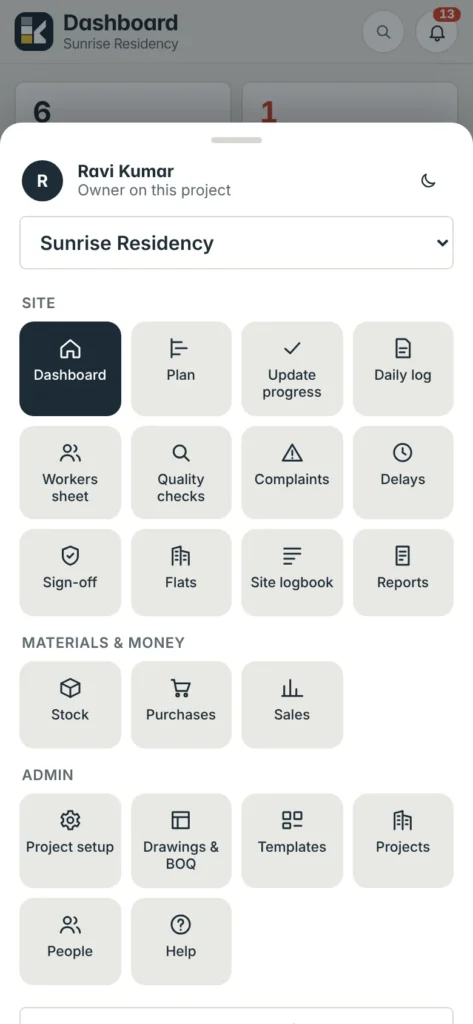
- Tap More — at the right end of the bottom bar.
- Tap Install Konkat on this phone — at the bottom of the More sheet.
- Confirm Install — in the box Chrome shows. Konkat says “Konkat is installed — open it from your home screen”.
- Open it from the icon — find the Konkat icon on the home screen or in the app drawer.
If Chrome does not show its install box, Konkat tells you to open the browser menu (⋮) and choose Install app or Add to Home screen. Do that instead — the result is the same.
iPhone and iPad (Safari)#
Apple only allows installing from Safari.
- Open Konkat in Safari — not in Chrome or inside WhatsApp’s browser. Sign in.
- Tap the Share button — the square with an arrow pointing up.
- Choose Add to Home Screen — scroll down the list if you don’t see it. Keep the name “Konkat” and tap Add.
Tapping Install Konkat on this phone on an iPhone shows these same steps.
If you open the Konkat link from WhatsApp or email, it may open inside that app’s own browser. Use “Open in Chrome” or “Open in Safari” first, then install.
On a computer#
On Chrome or Edge, the left menu shows Install Konkat app at the bottom when the browser allows it. Click it and confirm. Konkat then opens in its own window and can be pinned to the taskbar or dock. You can also use the install icon in the browser’s address bar.
What you get after installing#
- Full screen — no address bar; the Konkat bottom bar and back arrow do the navigation.
- Shortcuts — on Android, long-press the Konkat icon to jump straight to Update progress, Daily log, Workers sheet or Stock.
- Faster start and weak-signal support — screens you opened before still show when the signal drops. See Weak signal and offline.
- Same login — you stay signed in until you sign out or your session ends. The app’s name on the home screen may include your company name.
Updates#
You never update the app yourself. When your administrator installs a new version on the server, a bar appears at the top: “A new version of Konkat is ready.” Tap Reload. The version (build number) is shown at the bottom of the More sheet and under your name in the left menu on a computer.
Removing the app#
Remove it like any other app (long-press the icon → Uninstall or Remove). Your data stays on the server. Sign out first if the phone will be used by someone else — signing out also clears the copies Konkat kept on the phone.
Common questions#
I don’t see Install Konkat on this phone.#
Konkat is already installed and open from its icon — the button is hidden then. Otherwise check that you are on the More sheet, and see Troubleshooting.
Does the app use a lot of phone storage?#
No. It keeps a limited number of recent screens and photos, and removes the oldest automatically.