Reports
Print-ready PDF reports for any date range: daily site report, progress, QC & reworks, delays, task benchmarks, workforce and the full project record.
On this page
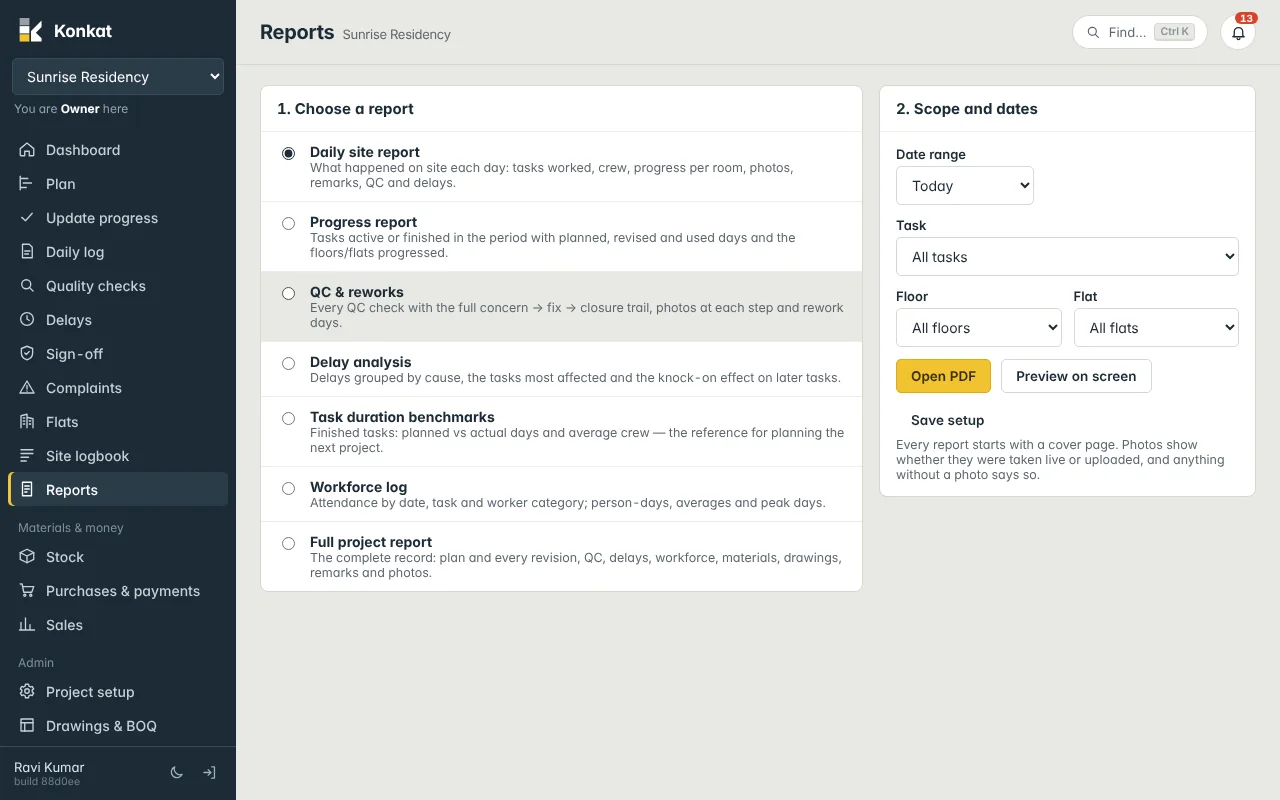
The Reports screen turns what was recorded on site into clean PDF reports for meetings, clients, banks or your own files. Pick a report, set the scope and dates, and open it as a PDF or preview it on screen.
Making a report#
- Open Reports — left menu, or More → Reports on a phone.
- 1. Choose a report — tick one of the seven reports (see the table below).
- 2. Scope and dates — pick the Date range. For one project you can also narrow to one Task, Floor or Flat. The Flat list only shows flats on the chosen floor.
- Open PDF — the PDF opens in a new browser tab, ready to print, save or share on WhatsApp or email. Or click Preview on screen to read it as a web page first.
Every report starts with a cover page showing the project, task, floor, apartment and date range. Photos are marked as taken live or uploaded, and anything without a photo says so. Pages are numbered “Page X of Y” in the footer.
The seven reports#
| Report | What it contains | Good for |
|---|---|---|
| Daily site report | What happened on site each day: tasks worked, crew, progress per room, photos, remarks, QC and delays. | Sending the day’s record to the owner or client. Starts on Today. |
| Progress report | Tasks active or finished in the period with planned, revised and used days and the floors/flats progressed. | Weekly or monthly progress meetings. |
| QC & reworks | Every QC check with the full concern → fix → closure trail, photos at each step and rework days. | Quality audits, consultant reviews. |
| Delay analysis | Delays grouped by cause, the tasks most affected and the knock-on effect on later tasks. | Explaining slippage, supplier or labour disputes. |
| Task duration benchmarks | Finished tasks: planned vs actual days and average crew. | Planning the next project or the next slab cycle realistically. |
| Workforce log | Attendance by date, task and worker category; person-days, averages and peak days. | Checking labour contractor bills and crew sizes. |
| Full project report | The complete record: plan and every revision, QC, delays, workforce, materials, drawings, remarks and photos. | Handover files, bank or RERA records. Always covers the full project. |
A Full project report with many photos can be large and take a minute or more to build. Use the Progress or Daily site report for regular sharing.
Dates and several projects#
The Date range choices are Today, Last 14 days, This week, Last week, This month, Last month, Full project and Custom range. Weeks run Monday to Sunday.
If you are on more than one project, the Progress, QC & reworks, Delay analysis, Task duration benchmarks and Workforce log reports show a Projects row: tap project names to include them in one report. With more than one project chosen, the Task, Floor and Flat boxes are hidden. The Daily site report and Full project report are always for the selected project only.
Saved setups#
If you run the same report often — for example the Daily site report for today, or a weekly Progress report for Last week — save it:
- Set up the report — choose the report, dates and scope.
- Click Save setup — give it a name (a name such as “Progress report — Last week” is suggested) and click Save.
- Use it later — it appears under Saved setups. Click its name to load the settings, or Run to open the PDF straight away. × removes it.
Saved setups are personal: each person sees only their own. Because a setup saves the date preset (such as Last week), running it next week gives next week’s dates.
Who can run reports#
All built-in roles can run reports. A custom role needs the Reports tick. Reports only include projects you are on.
Common questions#
The PDF doesn’t open.#
Your browser may have blocked the new tab — allow pop-ups for the Konkat site. PDFs need a connection; they are not kept for offline use. If the server shows an error, ask your administrator to check PDF printing (see Troubleshooting).
What is the difference between the logbook and the Daily site report?#
The Site logbook is the live list on screen; the Daily site report is the same information laid out for printing, day by day.
A wrong entry shows in my report.#
Correct or delete it (owner or someone allowed) and run the report again. See Corrections.