Payments
Record money paid out to suppliers, subcontractors and labour, and money received, with mode and UTR or cheque reference.
On this page
The Payments tab is the project’s cash book: every rupee paid out — to suppliers, subcontractors, labour contractors, transporters — and every rupee received, with date, mode and reference. It feeds what each purchase order shows as paid and due, and the Money summary.
Who can see and record payments#
Only people with Payments & money on the project (Owner and Admin by default, and custom roles like Accounts). Others don’t see the Payments and Money summary tabs, the Record payment button, or the paid and due amounts on orders.
Record a payment made#
- Open the form — Purchases & payments → Payments → + Payment made. To pay a supplier against an order, open the order and press Record payment instead.
- Date and amount — Date and Amount ₹.
- Paid to — the supplier, subcontractor or other party.
- Against purchase order — optional. Lists placed orders of that party with total and due; picking one fills the due amount.
- Category — Material, Labour, Subcontract, Transport, Machinery hire, Rent, Fees & approvals or Other.
- Mode and reference — Mode: Bank transfer, UPI, Cash, Cheque or Other; Reference: the UTR or cheque number.
- Notes — e.g. “Week ending 10 Oct” or “Advance against PO”.
- Save — “Payment recorded”.
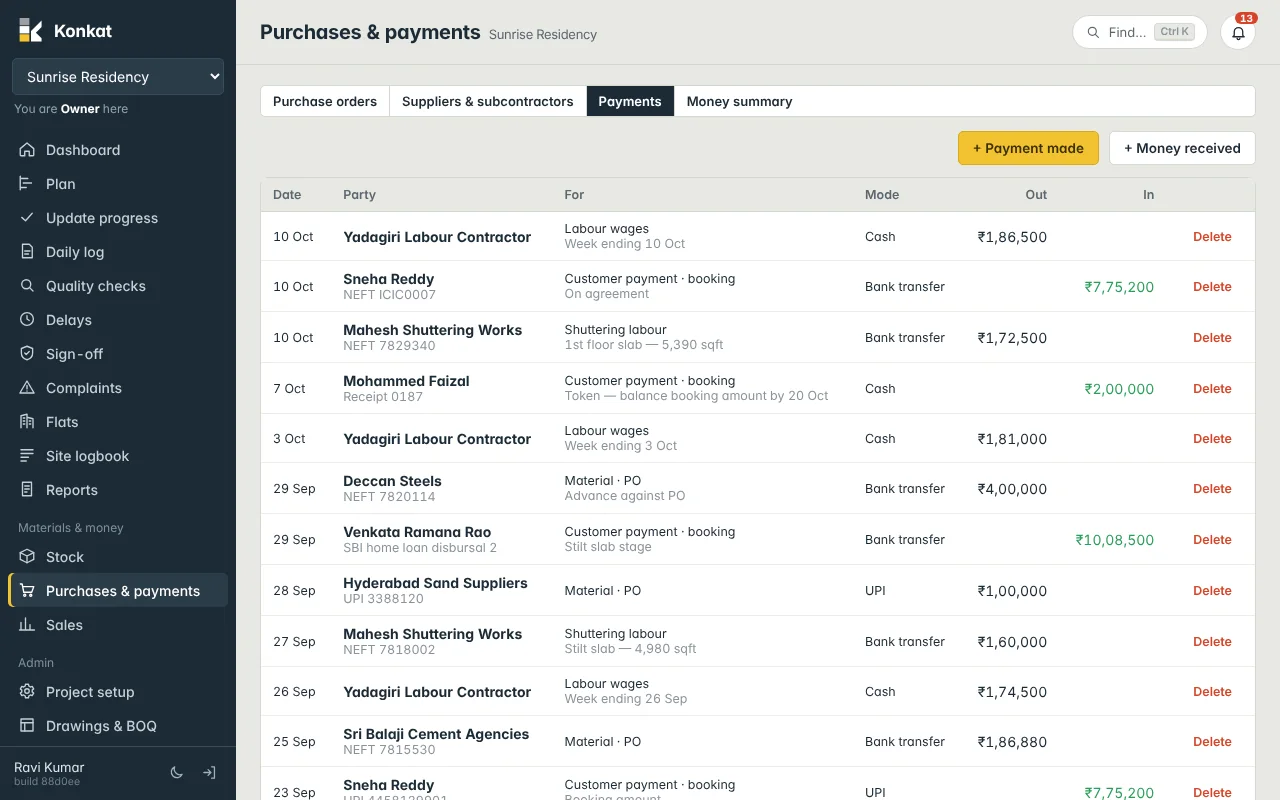
Examples#
| What happened | How to record it |
|---|---|
| ₹4,00,000 NEFT advance to Deccan Steels on their 29 Sep order | Open the order → Record payment; category is set to Material, reference “NEFT 7820114”. |
| ₹1,86,500 cash to Yadagiri Labour Contractor for the week | + Payment made, Paid to Yadagiri Labour Contractor, category Labour, mode Cash, note “Week ending 10 Oct”. |
| ₹1,72,500 to Mahesh Shuttering Works for 1st floor slab | + Payment made, category Subcontract, Bank transfer, the UTR as reference. |
| ₹18,000 JCB hire for cellar excavation clean-up | + Payment made, category Machinery hire, Paid to left blank or the hire firm. |
A payment against an order raises the order’s Paid and lowers its Due. The order list then shows due ₹… or paid.
Money received#
+ Money received records money coming in (switch Paid out / Received at the top, and choose Received from). For money from flat buyers, use Money received on the booking in Sales instead — only then does it fill the booking’s payment schedule. See Customer payments. Receipts recorded from a booking appear in this list too, marked booking.
Correcting a payment#
Payments can’t be edited. Press Delete on the wrong line and record it again. The order’s or booking’s paid amount is worked out again straight away.
Always pick Against purchase order when paying a supplier for an order. Payments not linked to an order count in “Paid” for that supplier, but don’t reduce what the money summary shows as due on their orders.
Payments in Konkat are a project record only. They post nothing to ERPNext — no Payment Entry, no journal, no bank ledger. If you also keep books in ERPNext or Tally, enter them there separately. See Konkat and ERPNext.
Common questions#
Can I pay more than an order’s due?#
Konkat doesn’t stop you; the order then shows a negative due. Check the amount before saving.
Can a site engineer see payments?#
Not with the built-in Engineer role. Give a custom role Payments & money if needed. See Roles and permissions.