The task page
Everything about one task on one screen: status, % done, days used, floors and flats, workers today, materials, links, and every update and photo — plus Assign workers.
On this page
The task page shows where one task stands and everything that happened on it. It is the quickest way to answer “what’s going on with the 2nd floor slab centring?” — on site or in the office.
Opening a task#
- Tap a task on the Dashboard (Active tasks, Plan for next, My tasks).
- On the Plan, right-click a task and choose Status, updates & photos, or Open task page in the details panel.
- Search it with Find (Ctrl + K).
- Tap Open task on the Daily log, or a task link in Comes after / Comes before, or in a notification.
‹ Back (or the ‹ arrow at the top) returns to where you came from.
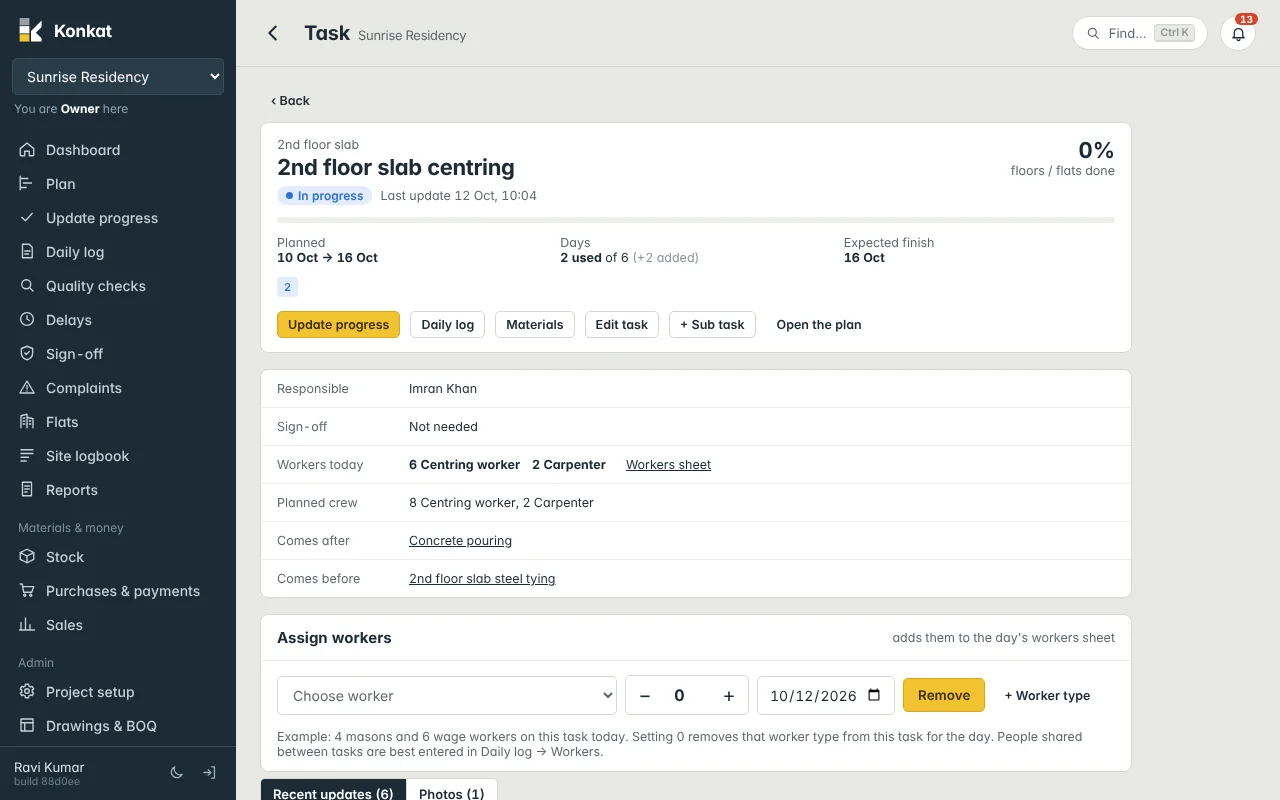
The top panel#
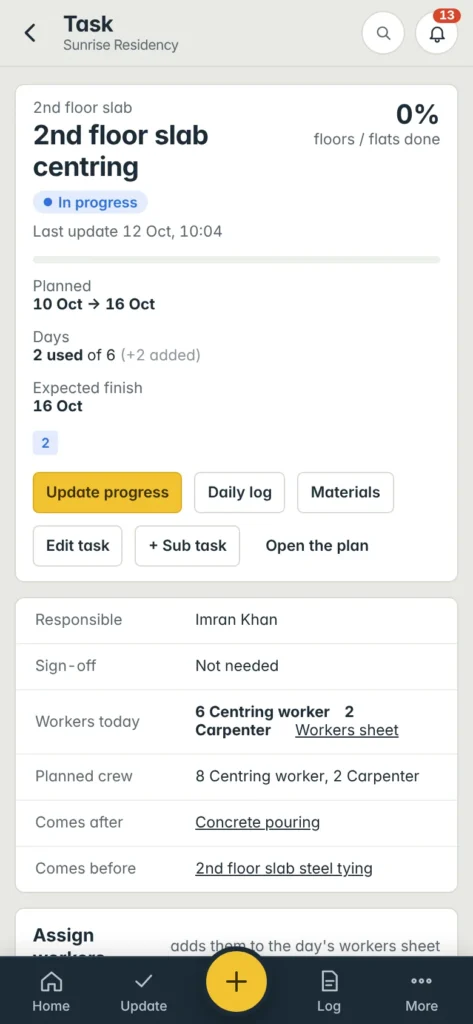
- Group name above the task name, e.g. 2nd floor slab.
- Status — Not started, In progress, Overrun, Awaiting sign-off, Done or Verified — and Last update time.
- % floors / flats done with a progress bar.
- Planned — start → finish.
- Days — 2 used of 6 (+2 added). Used days turn red when they go past the plan.
- Expected finish (or Finished) — with · 2d late start when earlier work is pushing it.
- Floor / flat tiles — one per floor or flat, coloured by status (on a computer, hover over one to see its status).
Buttons: Update progress, Daily log, Materials (the checklist), and for people who can edit the plan, Edit task and + Sub task. Open the plan goes to the Gantt.
The details list#
| Line | Shows |
|---|---|
| Responsible | Who runs the task, or Nobody assigned. |
| Sign-off | Who signs it off, Anyone allowed to sign off on this project, or Not needed. |
| Workers today | People booked on this task in today’s workers sheet, e.g. 6 Centring worker, 2 Carpenter, with (shared with …) when a crew is split. Links to the Workers sheet. |
| Planned crew | The crew planned in the task form. |
| Materials | ✓ confirmed on site, ○ not yet. |
| Comes after / Comes before | Linked tasks — tap to open them. |
Assign workers#
The Assign workers panel books people of one worker type on this task for a day. It writes into that day’s Workers sheet.
- Choose worker — e.g. Head mason. + Worker type adds a new type (if you manage the project).
- Set the number with − and +, e.g. 4.
- Pick the date — today or an earlier day (not a future one).
- Tap Assign — Konkat says e.g. 4 Head mason booked on this task.
Setting the number to 0 changes the button to Remove and takes that worker type off this task for the day.
Assign workers is quick for one task. When the same people work on several tasks in a day, enter them once in Daily log → Workers and pick all their tasks — they are counted once and their day is split.
Changing an earlier day that already has a saved workers sheet is a correction: only the project owner, or someone allowed to correct logs, can do it.
Recent updates and Photos#
Two tabs at the bottom:
- Recent updates — every status tap, daily log, QC check, delay, sign-off and material confirmation on this task, newest first, grouped by day. Daily logs you wrote today show Edit; people allowed to correct logs see Correct and Delete.
- Photos — all photos from status updates, daily logs, QC and sign-offs. Tap one to open the viewer; swipe or use the arrows for the next. Each photo is marked Live (taken in the app) or Uploaded (from the gallery).
Common questions#
Why is it 0% done when work is going on?#
The % counts floors or flats marked Done. A floor in progress doesn’t count until it is done.
Where do “days used” come from?#
Each day with a daily log on the task counts as a used day. Status taps and the workers sheet alone don’t add days. See Daily log.