Sub tasks and order
Group tasks under a parent, add sub tasks and ancillary tasks, take tasks out of a group, and drag rows to set the plan order.
On this page
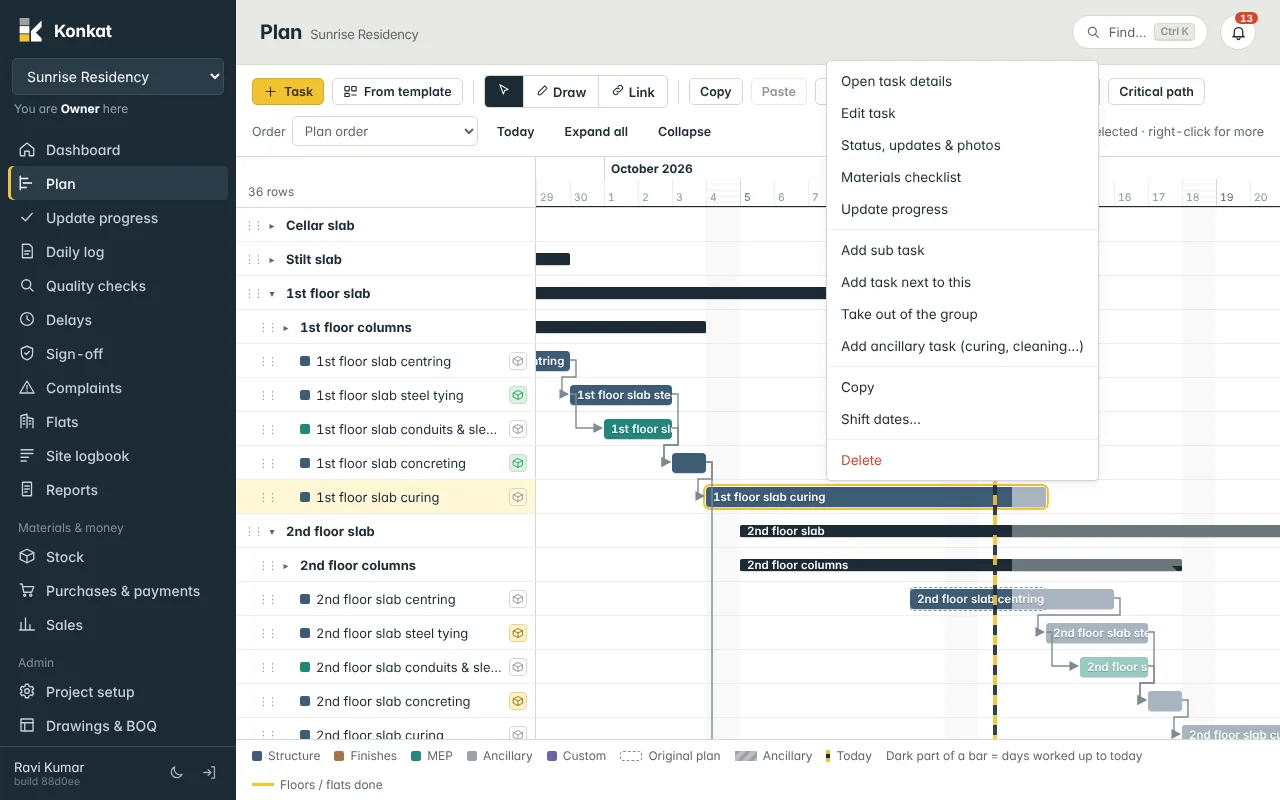
A big plan is easier to read when work is grouped — 2nd floor slab with its centring, steel tying, conduits, concreting and curing underneath. This article explains groups, sub tasks, ancillary tasks and how to put rows in the order you want.
Groups and sub tasks#
Any task can become a group by giving it sub tasks. A group:
- shows in bold with a ▸ / ▾ arrow to open or close it;
- runs from its first sub task’s start to its last sub task’s finish — you don’t set its dates;
- shows the combined status and progress of its sub tasks;
- moves all its sub tasks when you drag it.
Groups can be nested: 1st floor slab › 1st floor columns › Steel tying.
Add a sub task#
- Right-click the task on the Plan and choose Add sub task — or open the task page and tap + Sub task.
- Fill the form — the title says New sub task and shows Sub task of …. Start date, category and floors are copied from the parent.
- Tap Create task. The parent becomes a group.
A task that already has site records (daily logs or progress updates) can’t become a group. Add the new task next to it instead, or make a new group and put both inside.
Add a task next to another#
Add task next to this creates a task at the same level, in the same group, starting on the same day. Use it to add one more step to a slab cycle.
Take a task out of a group#
- Right-click it and choose Take out of the group — it moves up one level, placed just after its old group.
- Or open it with Edit task and tap Take it out of the group, then save.
When the last sub task leaves a group, the group becomes a normal task again.
Ancillary tasks#
Ancillary tasks are the small jobs that follow main work: curing after concreting, debris clearing, cleaning. Right-click a task and choose Add ancillary task (curing, cleaning…). The new task:
- is placed in the same group, starting right after the main task ends;
- is already linked to it, so it moves when the main task moves;
- gets the Ancillary category and a striped bar;
- doesn’t need sign-off unless you tick it.
On the Dashboard’s Plan for next list, ancillary tasks show a Reminder tag.
Set the order of rows#
Rows are shown in Plan order unless you pick another order in the Order box. To change the plan order:
- Grab the ⋮⋮ handle on the left of a row.
- Drag up or down — a line shows where it will land; it turns red where a drop isn’t allowed (onto itself or its own sub tasks).
- Drop:
- between rows — the task goes there, at that level;
- on the middle of a group row — the task goes inside that group, at the top;
- next to top-level rows — the task comes out of its group.
If another order was showing, Konkat switches to Plan order so you can see the result.
The other orders — Newest first, Last updated, Start date (earliest first), Start date (latest first) — only change what you see; they never change the plan. Groups stay together and are sorted by what is inside them. Your choice is remembered on your device.
Open, close and select groups#
- Click the ▸ / ▾ arrow to open or close one group, or use Expand all / Collapse. Konkat remembers which groups you left open.
- Right-click a group and choose Select all children to select the group and everything in it — handy before Copy or Shift dates.
- Duplicate group copies a group with all its sub tasks and links, with a new name, start date and floors. See The Gantt chart.
Deleting#
Deleting a group deletes all its sub tasks too; Konkat tells you how many first. Tasks with daily logs or QC records can’t be deleted.
Common questions#
Can I put a task into a group from the task form?#
The form can take a task out of its group. To put it into a group, drag its ⋮⋮ handle onto the middle of the group row.
Why are my new tasks at the bottom?#
A new task is added at the end of its level. Drag it to where it belongs.