The task form
Every field of the task form: name, category, per floor or per flat & room, floors, rooms, tracking, links, dates, responsible people, sign-off, planned crew, material estimate and materials.
On this page
The task form is where you create or change a task — everything about it in one place. Open it with + Task on the Plan, New task from the phone’s + button, Edit task in the right-click menu, or Edit task on the task page. You need Edit the plan in your role.
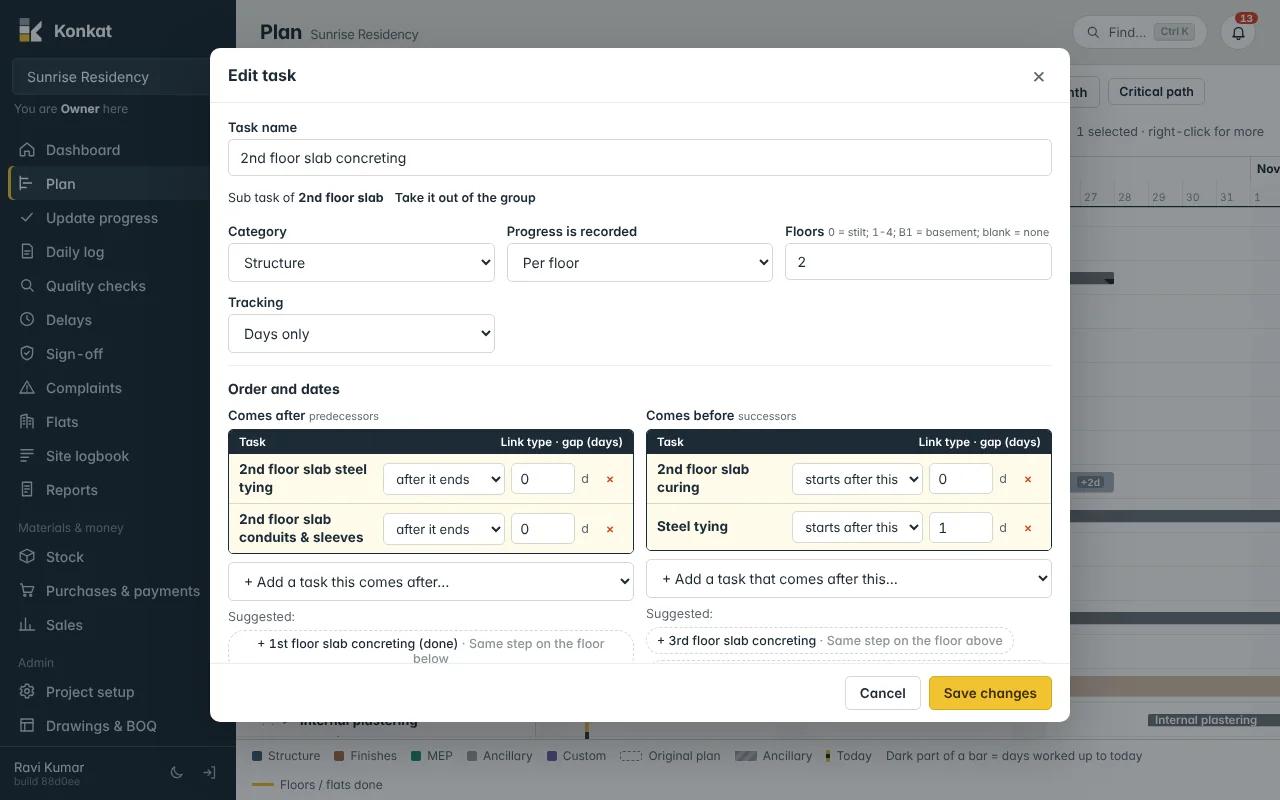
Name and what is tracked#
- Task name — e.g. 1st floor column casting. Starting the name with the floor (“2nd floor …”, “Stilt floor …”) helps Konkat suggest links to the same step on the floors above and below.
- Sub task of … — shown when the task is inside a group. Take it out of the group moves it to the top level when you save.
- Category — Structure, Finishes, MEP, Ancillary or Custom. Sets the bar colour.
- Progress is recorded — Per floor (slabs, blockwork per floor, compound wall) or Per flat & room (plastering, tiling, electrical in each flat).
- Floors — which floors the task covers:
2,1-4,0for the stilt floor,B1for the cellar. Leave it blank for work that isn’t split by floor, such as the compound wall. - Rooms (per flat only) — comma separated, e.g. Bathroom, Kitchen, Balcony. Blank means the whole flat.
- Tracking — Days only, Per floor / flat / room, or Quantity (then give a Quantity unit such as sqft, nos, rft).
The floors and rooms decide what the site sees in Update progress: one tile per floor, or one tile per flat with its rooms. A task with no floors is updated as a whole.
Order and dates#
This section links the task to others and sets its dates.
- Comes after (predecessors) — tasks that must happen first. For each, choose the link type: after it ends, when it starts or ends with it, and a gap in days (negative = overlap).
- Comes before (successors) — tasks that wait for this one: starts after this, starts with this or ends with this.
- Suggested: chips — Konkat suggests links from the name, group, floors and dates, e.g. Same step on the floor below, Previous step in 2nd floor slab. Tap a chip to add it. Nothing is linked unless you tap.
- Start and Duration (days) — half days are allowed.
- Start right after the tasks it comes after — ticked, the start date follows the predecessors and Konkat shows when it starts and ends.
- Why are the dates changing? — appears when you change dates after the project start. See Plan changes after the start.
- Days used and Extra days added (existing tasks) — normally filled by daily logs and delays, but you can correct them here.
More in Links and dependencies.
People#
- Responsible — tap the people who run this task. They get a notification and see it under My tasks on their Dashboard.
- Needs sign-off before it counts as finished — new tasks start with this ticked (ancillary tasks don’t). When the site marks the work done, it waits in Sign-off until approved.
- Who signs off this task — pick specific people, or pick nobody to allow everyone with Can sign off on the project. With two or more picked, tick All of them must sign if one is not enough.
- Photo required when marked done — the site can’t mark it done without a photo.
Planned crew#
+ Add workers and choose a worker type and number, e.g. 8 Centring worker, 2 Carpenter. The planned crew pre-fills the daily log until the site logs actual numbers, and shows on the task page.
Material estimate#
Optional, but it feeds the automatic BOQ. Choose the Type of work (e.g. RCC slab with steel, Brickwork 230 mm) and the Quantity of work (e.g. 42 cum). Konkat shows the cement, sand, steel and so on needed. Tap Put these in the materials list to copy them below. See Auto BOQ.
Materials#
The task’s materials checklist: name, quantity and unit. Type several names separated by commas and tap Add. Pick names from the material list so stock and purchases can follow them; new names are added to the list. ✓ on site shows materials already confirmed.
Save#
Tap Create task (new) or Save changes. The plan scrolls to the task and highlights it.
For a group task (one with sub tasks) the form is shorter: dates, floors, crew and materials belong to the sub tasks, and the group’s bar follows them.
Common questions#
I changed Floors and some floor tiles disappeared on Update progress.#
That’s expected: floors no longer in the list are removed — but only if nothing was recorded on them. Floors with progress stay.
Should I use Per floor or Per flat & room?#
Per floor for structure and anything done floor by floor. Per flat & room when different flats finish at different times — plastering, tiling, painting, electrical.