The Gantt chart
Read and use the Plan screen: bars, colours, the today line, zoom, order, moving and resizing tasks, Draw and Link modes, copy and paste, and the right-click menu.
On this page
The Plan screen is the project’s Gantt chart: every task as a bar on a calendar, grouped and linked. Engineers and owners build and change the plan here; everyone else on the project can look at it.
Reading the chart#
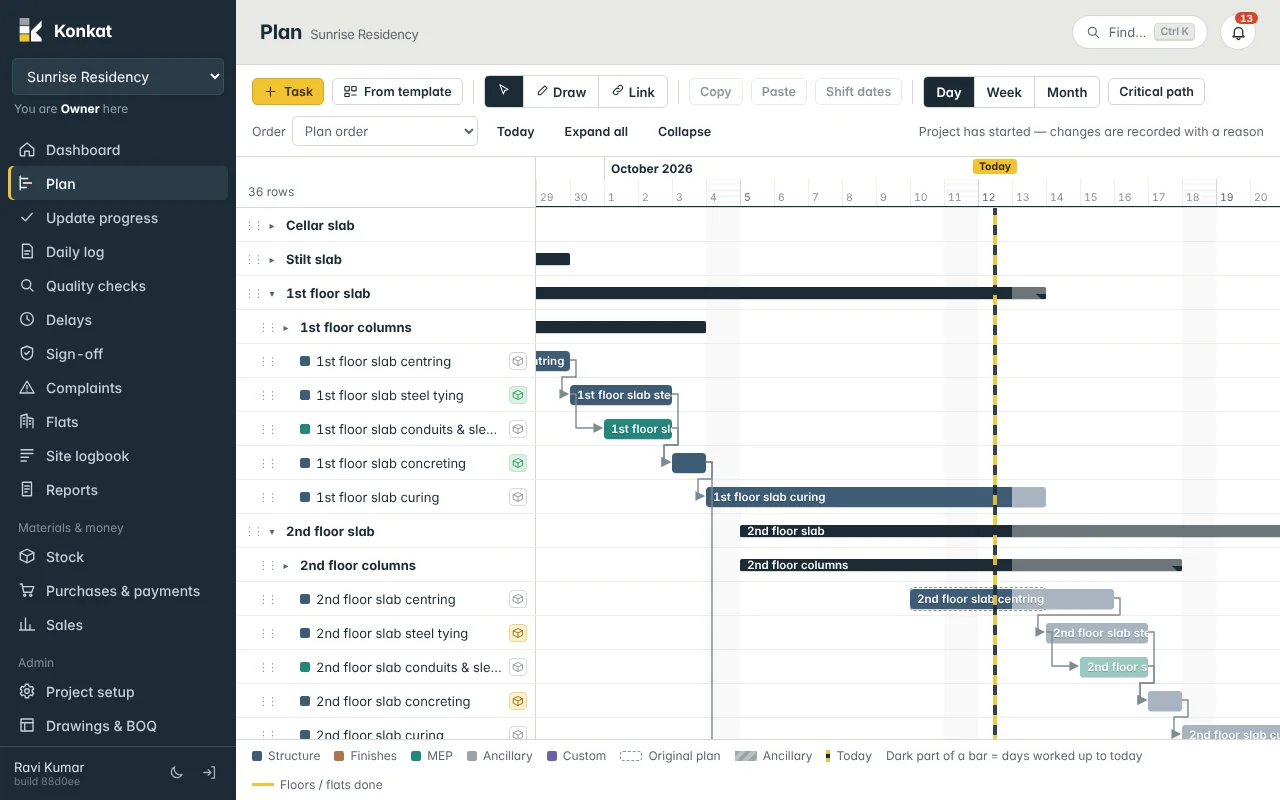
- Rows — task names on the left. Groups (like 1st floor slab) are bold with a ▸ / ▾ arrow to open or close them. Sub tasks are indented under them.
- Bars — each bar runs from the task’s start for its duration. The colour is the task’s category; the legend at the bottom explains them: Structure, Finishes, MEP, Ancillary, Custom.
- Dark part of a bar — days worked up to today. A finished task is fully dark; a task not started is light.
- Yellow line under a bar — how many floors or flats are done.
- Dashed bar — the Original plan, shown when a task has been moved or stretched after the project started.
- Striped bar — an Ancillary task such as curing or cleaning.
- Arrows — links: the task at the arrow’s head waits for the one at its tail.
- Today — the dashed yellow-and-black line. The chart opens with today near the left edge.
- +2d on a bar — Konkat expects the task to start that many days late because of earlier work.
- rev 2 next to a name — the task has been revised twice after the start.
- The small box icon next to a name opens the task’s materials checklist; it turns green when all materials are confirmed on site.
Hover over a bar (on a computer) to see its start, days, status, % of floors/flats done and any expected delay.
The toolbar#
People who can edit the plan see the full toolbar:
- + Task — opens the task form. See The task form.
- From template — adds a ready-made sequence of steps. See Templates.
- Select (arrow), Draw and Link — the three modes, explained below.
- Copy, Paste, Shift dates — work on the selected tasks.
Everyone sees:
- Day, Week, Month — zoom.
- Critical path — highlights the chain of tasks that decides the finish date. A delay on any of them delays the project.
- Order — Plan order (the order you set by dragging), Newest first, Last updated, Start date (earliest first) or Start date (latest first). Groups always stay together.
- Today, Expand all, Collapse.
On the right, a hint tells you what is going on — e.g. Project has started — changes are recorded with a reason, or 3 selected · right-click for more.
Moving and resizing tasks#
- Move — drag a bar left or right. Dragging a group moves all its sub tasks.
- Change the duration — drag the right edge of a bar.
- Confirm — if the change pushes linked tasks, Konkat lists them with old and new dates. Choose Change and shift (moves them too), Change only this, or Cancel.
After the project start you also give a reason. See Plan changes after the start.
To move several tasks together, select them first: click one, then Shift-click others, or drag a box around bars on empty space. Then drag any selected bar, or use Shift dates to move them all by a number of days (negative moves earlier).
Draw and Link modes#
- Draw — drag across a row to sketch a new task over those days. The task form opens with the dates filled in. Drawing on a group’s row puts the new task inside that group; drawing in the empty area at the bottom makes a top-level task.
- Link — click the task that comes first, then the task that follows. Press Esc to stop. See Links and dependencies.
The right-click menu#
Right-click a bar or a task name (long-press on a touch screen) for everything else:
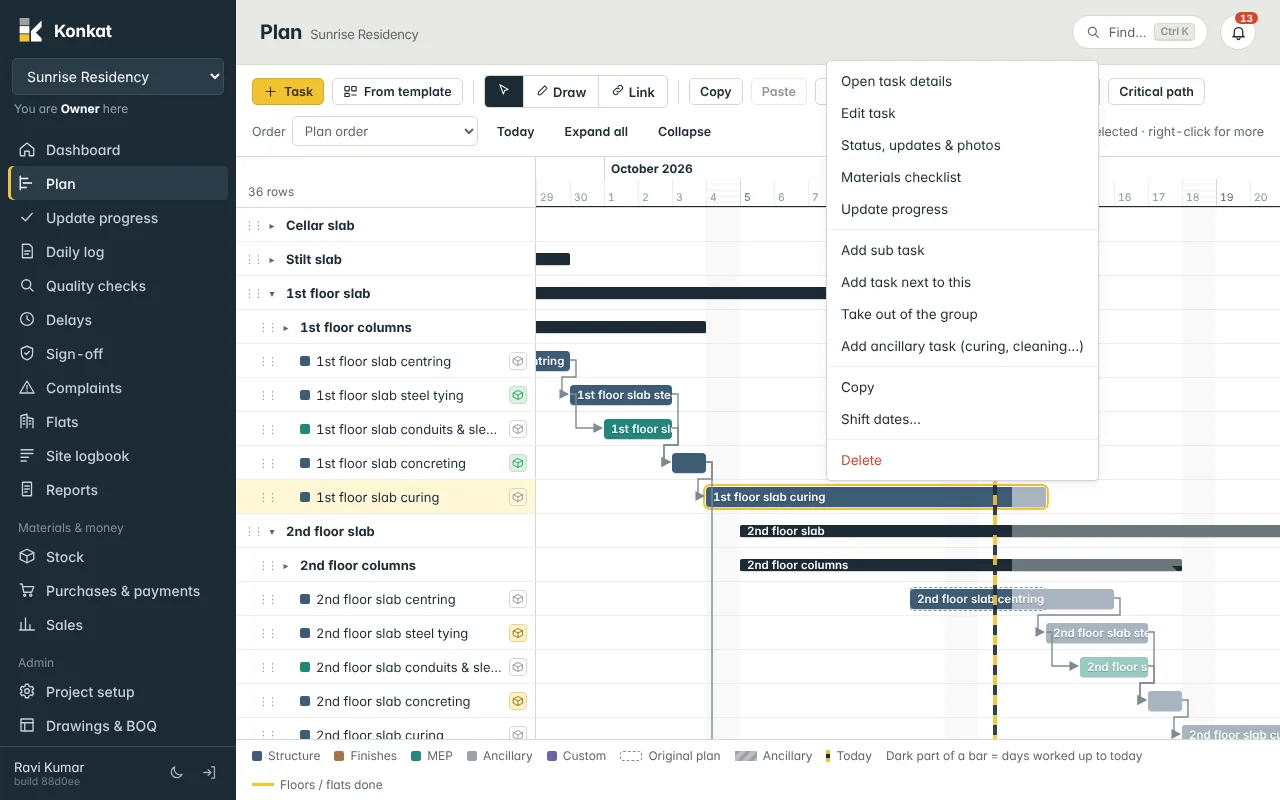
- Open task details — a side panel with status, recent updates, links and plan revisions. Double-click does the same.
- Edit task, Status, updates & photos (the task page), Materials checklist, Update progress.
- Add sub task, Add task next to this, Take out of the group, Add ancillary task (curing, cleaning…). See Sub tasks and order.
- Select all children (on a group), Copy, Paste after this, Duplicate group, Shift dates….
- Delete — removes the task and its sub tasks. A task with daily logs or QC records can’t be deleted; rename it or mark it done instead.
Right-click on empty space in a row for New task on that day, or Paste here.
Copy and paste#
Select tasks and press Copy (or Ctrl + C). Then Paste (Ctrl + V), Paste after this, or right-click a day and Paste here. A copied group brings its sub tasks. Konkat suggests the next floor — copying 2nd floor slab offers 3rd floor slab as the new name and 3 as the floors — and renames sub tasks to match. Links between the copied tasks are recreated; links to other tasks are not.
Duplicate group does the same for one group in a single step.
Common questions#
I can’t drag anything.#
Your role doesn’t include Edit the plan. You can still open tasks, see details and use Update progress from the menu.
Why does a group’s bar change on its own?#
A group runs from its first sub task’s start to its last sub task’s finish. When sub tasks move, the group follows.