The units table
See every unit with its type, configuration, facing, area, price and sale status; select by floor or series; edit many units at once; download to Excel.
On this page
The units table, at the bottom of Project setup → Units, lists every unit in the project with its sales details. Use it to fill in configuration, facing, area and price — one unit at a time or dozens at once.
What the table shows#
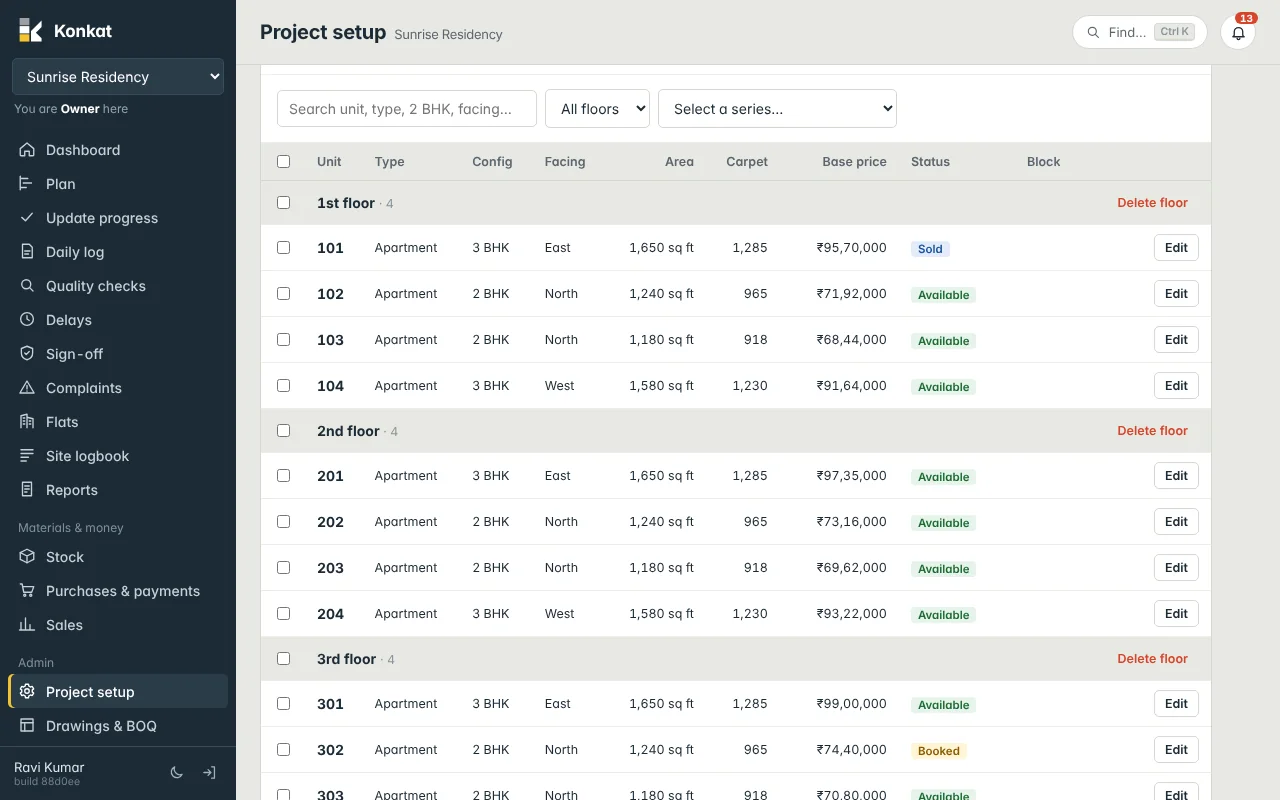
Units are grouped by floor. Each floor row shows the floor name, how many units it has, a tick box for the whole floor and Delete floor. The columns are:
| Column | What it means |
|---|---|
| Unit | The unit name, e.g. 302. Tap it to edit. |
| Type | Apartment, Villa, Shop, Clubhouse… |
| Config | Configuration, e.g. 2 BHK, 3 BHK, Duplex. |
| Facing | East, West, North-East… |
| Area | Saleable area with its unit, e.g. 1,650 sq ft. |
| Carpet | Carpet area, in the same unit as Area. |
| Base price | The list price in ₹. |
| Status | Sale status: Available, Blocked, Booked, Sold or Not for sale. |
| Block | Block or wing, e.g. Tower A. |
Find units#
- Search — type in Search unit, type, 2 BHK, facing…. It matches the name, type, configuration, facing, block and status.
- Floor filter — choose one floor from All floors.
Select units#
Tick the box on the left of each unit you want. You can also select:
- A whole floor — tick the box on the floor row.
- Everything shown — tick the box in the header (after searching or filtering, this ticks only what is shown).
- A series — choose from Select a series…, e.g. No. 01 (101…) on every floor. This ticks flat 01 on every floor: 101, 201, 301… 801. Perfect when the same position has the same layout on every floor.
Choosing a floor or series again unticks it. The count appears on the right, e.g. 6 selected, with Edit selected, Delete and Clear.
Edit many units at once#
- Select the units — e.g. series No. 01 and No. 04 for all the 3 BHK flats.
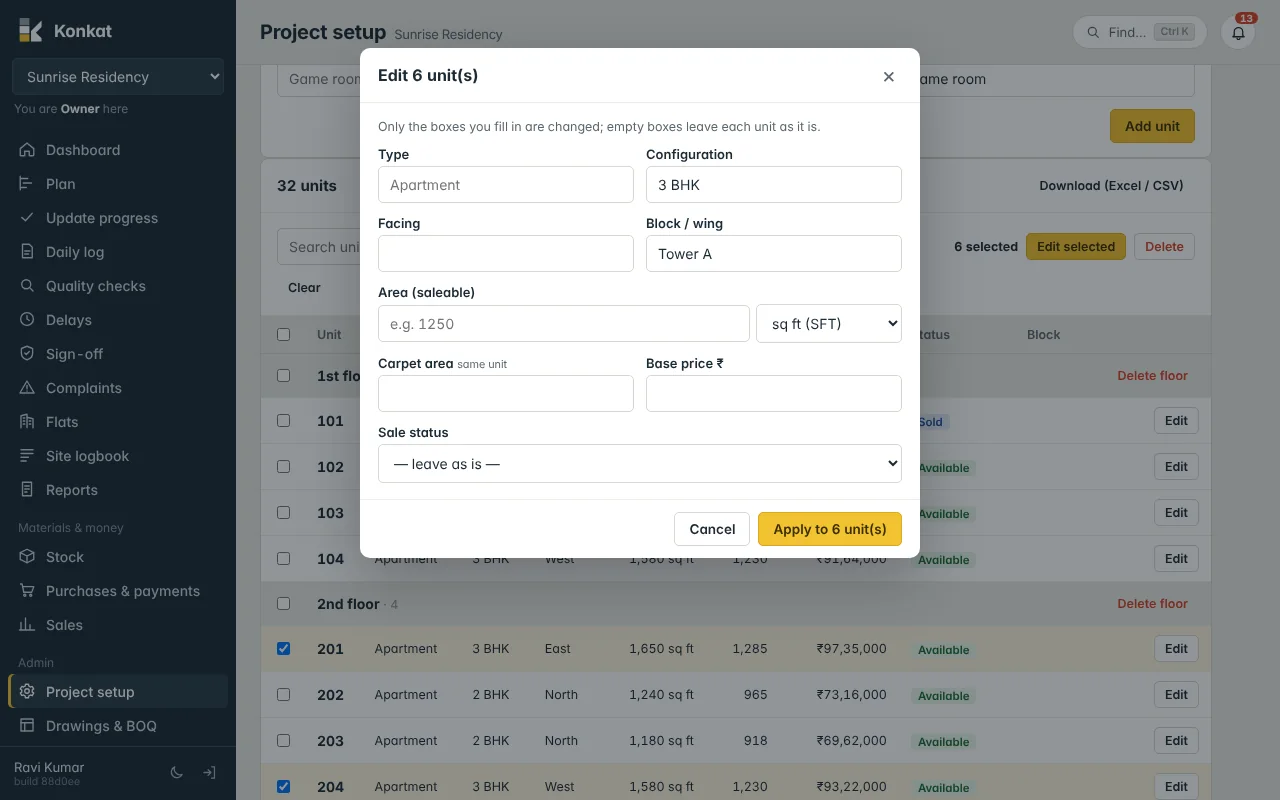
- Tap Edit selected — the Edit 6 unit(s) window opens.
- Fill only what should change — Type, Configuration, Facing, Block / wing, Area (saleable) with its unit, Carpet area, Base price ₹ and Sale status.
- Tap Apply to … unit(s).
Only the boxes you fill in are changed; empty boxes leave each unit as it is. Leave Sale status on — leave as is — unless you mean to change it.
Edit one unit#
Tap the unit name or Edit. The Unit window has every field: Name, Floor (-1 = B1), Type, Configuration, Facing, Block / wing, Area (saleable), Carpet area, Base price ₹, Sale status and Notes. Tap Save, or Remove to delete the unit (only possible while nothing has been recorded against it).
Area units#
Area can be entered in sq ft (SFT), sq yd (SY), sq m, Acre, Cent, Gunta / Guntha or Custom… (type your own unit name, such as Ankanam). For the standard units Konkat shows the square-feet equivalent next to the label, e.g. = 1,345 sq ft. Carpet area uses the same unit as the saleable area.
Sale status#
Sales staff and owners usually keep this up to date from the Sales screen: booking a unit marks it Booked, and registration or handover marks it Sold. You can also set it by hand here — for example Blocked for a flat held for the landowner, or Not for sale for a society office. See Bookings.
Download to Excel#
Tap Download (Excel / CSV) at the top of the table. You get a CSV file with Unit, Floor, Block, Type, Configuration, Facing, Area, Area unit, Carpet area, Base price, Status and Notes, which opens in Excel or Google Sheets. Only the units currently shown are included, so search or filter first if you want a part of the list.
Common questions#
Who can edit the units table?#
People with Manage the project in their role (Owner, Admin, or a custom role with that tick). Others do not see Project setup.
The series list is missing my clubhouse.#
Units added one at a time are not part of a series. Select them with their tick boxes instead.