Finding your way around
The left menu, the phone's bottom bar and + button, More, Find, notifications, the project switcher, Back and Help — where everything is in Konkat.
On this page
Konkat looks a little different on a computer and on a phone, but the screens are the same. This article shows where to find things and how to move between them quickly.
On a computer: the left menu#
The dark menu on the left has three groups:
- Site work (no heading): Dashboard, Plan, Update progress, Daily log, Quality checks, Delays, Sign-off, Complaints, Flats, Site logbook, Reports.
- Materials & money: Stock, Purchases & payments, Sales.
- Admin: Project setup, Drawings & BOQ, Templates, Projects, People, Help.
You only see the screens your role allows. For example, Sign-off appears only for roles with Sign off work, and Project setup only for roles with Manage the project. See Roles and permissions.
At the top of the menu is the project switcher — pick a project from the list. Under it Konkat tells you your role on that project, for example You are Owner here. At the bottom are your name, the build number, the dark-mode button and sign out.
On a phone: the bottom bar#
On a phone the menu is replaced by a bar at the bottom of the screen:
- Home — the Dashboard.
- Update — Update progress.
- The yellow + — opens What do you want to record?
- Log — Daily log.
- More — every other screen.
The + button#
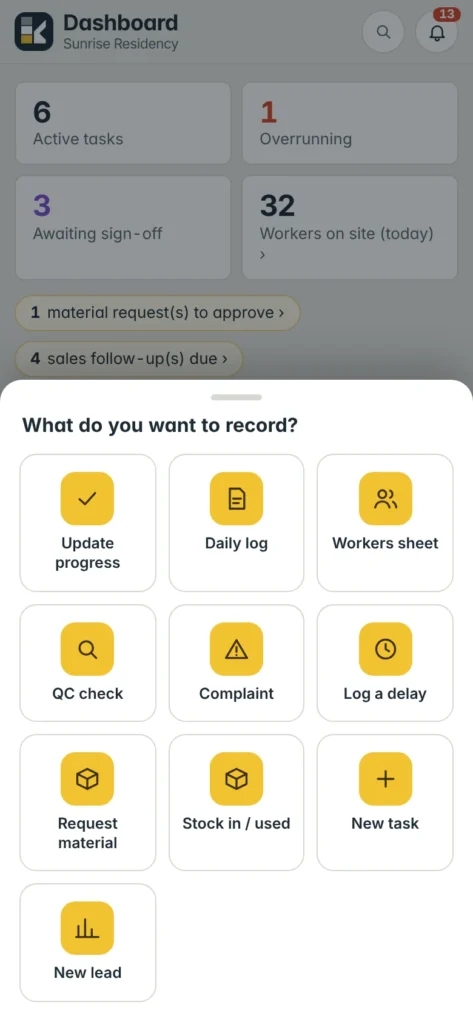
The + opens a sheet of quick actions: Update progress, Daily log, Workers sheet, QC check, Complaint, Log a delay, Request material, Stock in / used, New task and New lead. Again, you see only what your role allows.
More#
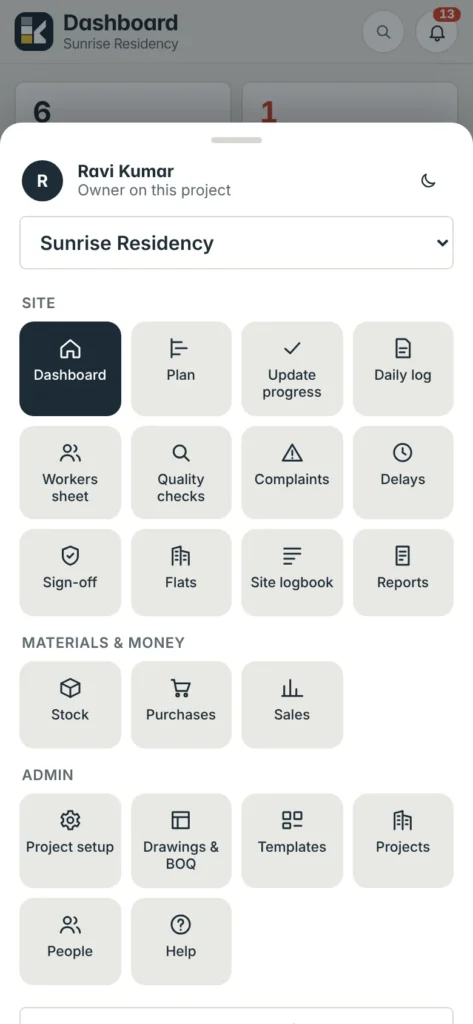
More shows every screen as tiles, grouped into Site, Materials & money and Admin. At the top are your name and role on the project, the dark-mode button and — if you are on more than one project — the project switcher. At the bottom are Install Konkat on this phone, Sign out and the build number.
Find anything: the search box#
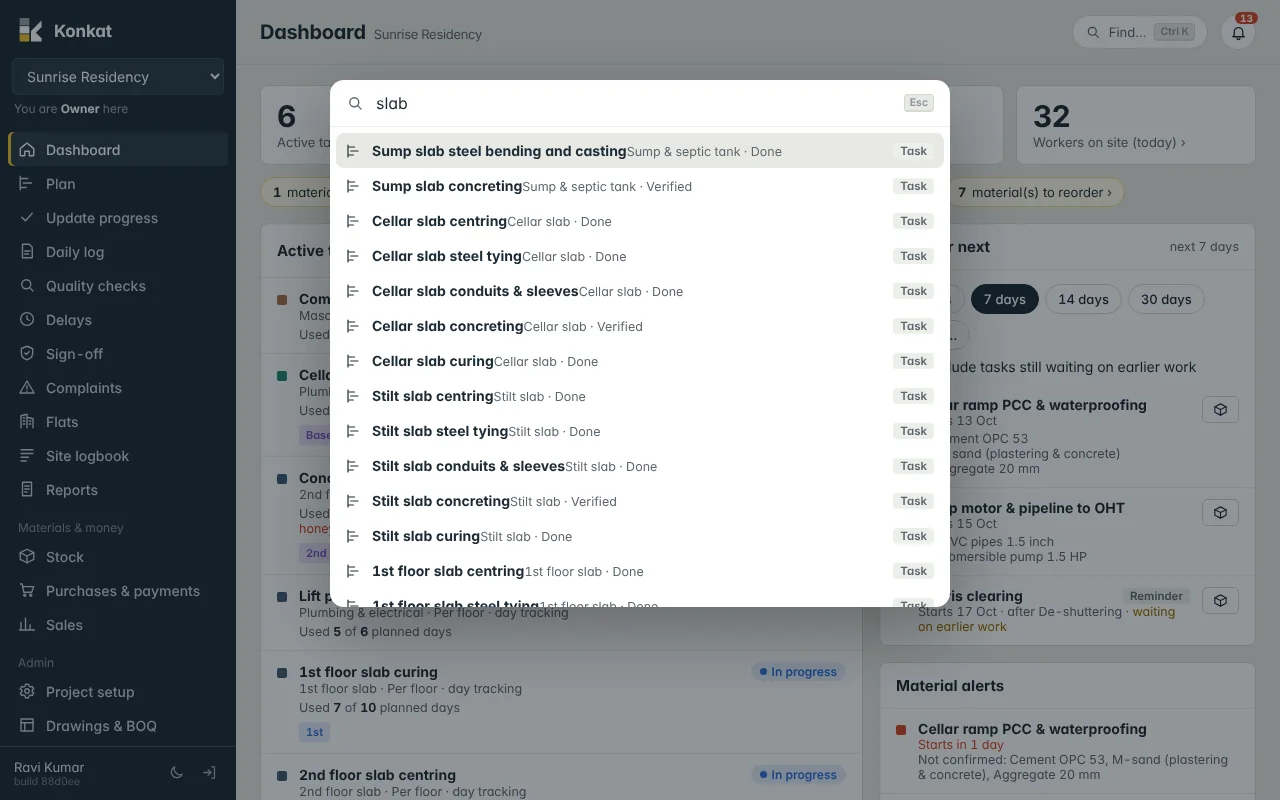
Tap Find… at the top of the screen (the magnifier on a phone), or press Ctrl + K (⌘ + K on a Mac). Type a few letters and Konkat lists matching:
- Screens — e.g. type work for Workers sheet.
- Actions — e.g. delay for Log a delay.
- Tasks — e.g. slab for every slab task, with its group and status.
- Units — e.g. 302 opens flat 302.
- People on the project — tapping a person with a phone number starts a call.
Use the arrow keys and Enter on a computer; Esc closes it.
Notifications#
The bell at the top right shows a red count of unread notifications — for example a task you were made responsible for, work waiting for your sign-off, a material request to approve or a complaint assigned to you. Tap one to go straight to it. Mark all read clears the count.
Going back and refreshing#
- Back — when you open a task, a flat or a form, a ‹ arrow appears at the top left. It returns you to where you came from. The phone’s own back button works too.
- Refresh — on a phone, pull down at the top of any screen to reload it.
- New version — when Konkat is updated on the server, a bar says A new version of Konkat is ready. Press Reload.
Help inside the app#
Open Help (left menu, or More → Help) for short how-to notes on every part of Konkat. Search it with words like transfer, sub task or booking; each section has an Open button that takes you to that screen.
Common questions#
A screen my colleague uses is missing from my menu.#
Your role on this project does not include it. Ask the project owner to change your role or give you a custom role. See Roles and permissions.
I can’t find my project.#
You only see projects whose Team you are on. Ask the owner or admin to add you under Project setup → Team.